Your studio,on your address.
A storefront on your own domain with rooms, rates and booking. Choose a theme or upload your own, and point your existing site's Book now at the same checkout.
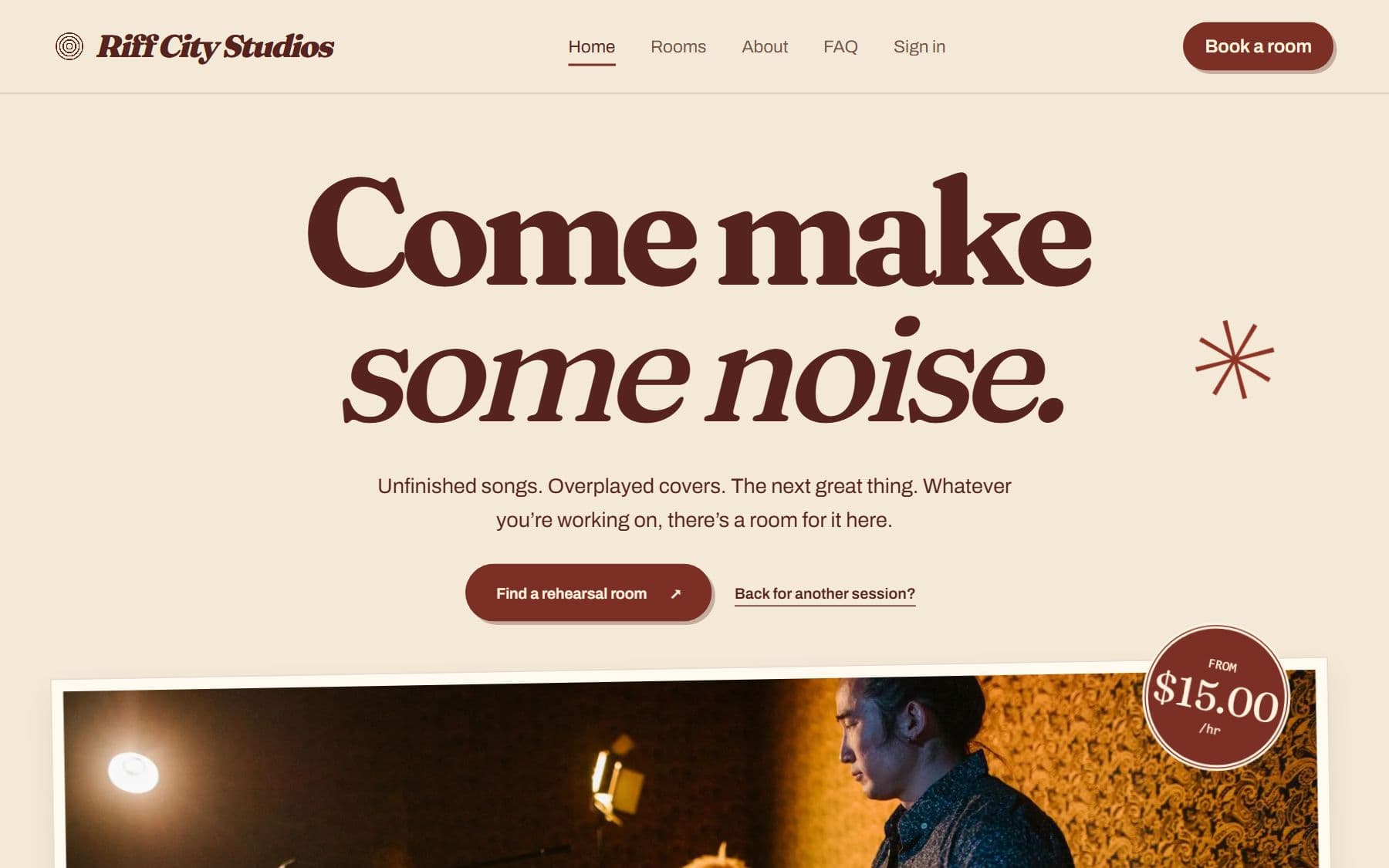
Studio website & themes
Publish a studio website with rooms, photos, prices and booking. Choose a ready-made theme or use custom theme support, preview changes before publishing.
- 1
Choose a theme
Start with a ready-made design or upload a compatible custom theme.
- 2
Add your studio content
Set photos, page sections, navigation and room information, then inspect the draft preview.
- 3
Publish the website
Publish the theme settings and verify the live room pages and booking links.
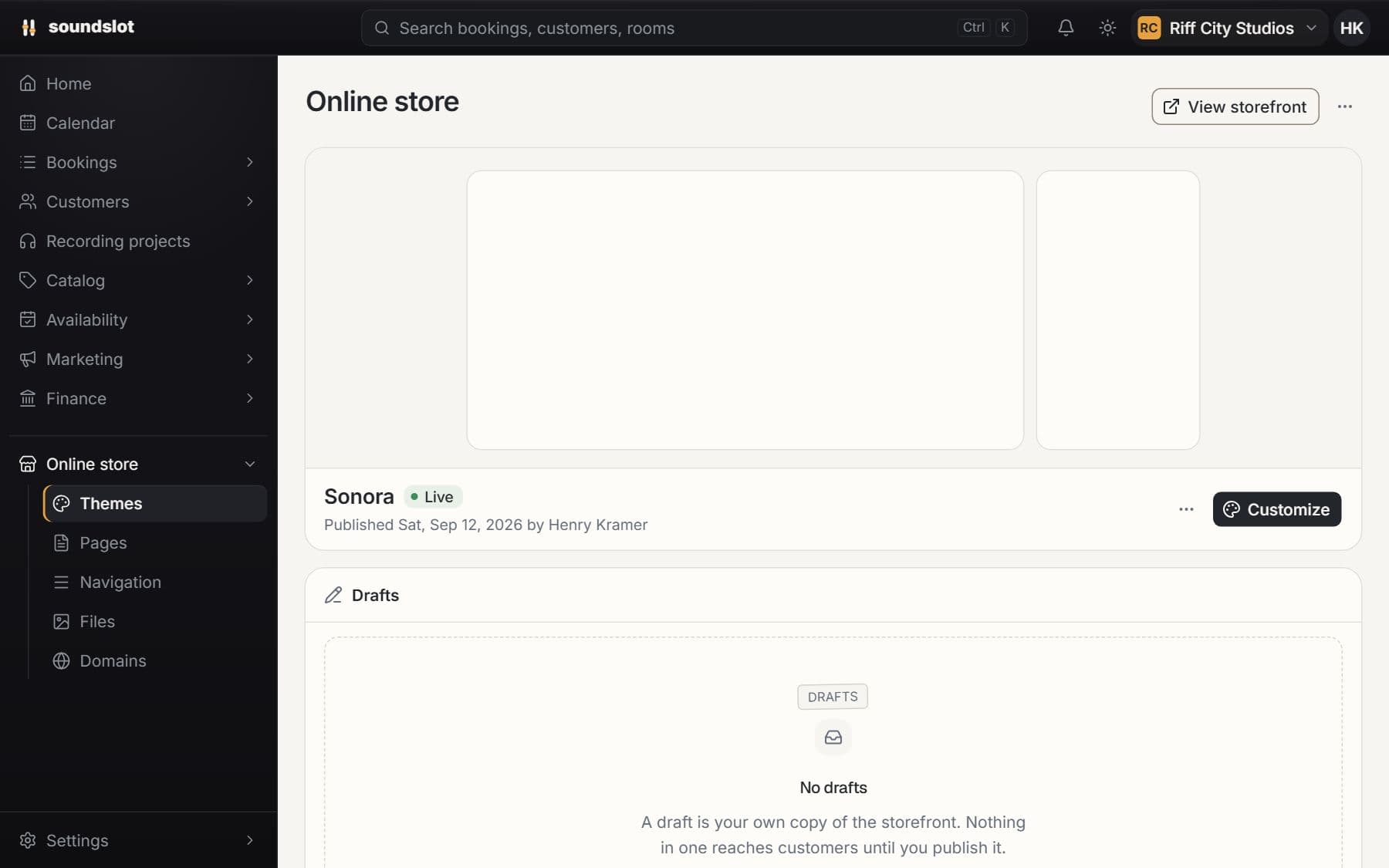
Ready-made and custom themes
Choose a supplied design or upload a supported custom theme package. Edit the sections and settings that the theme exposes.
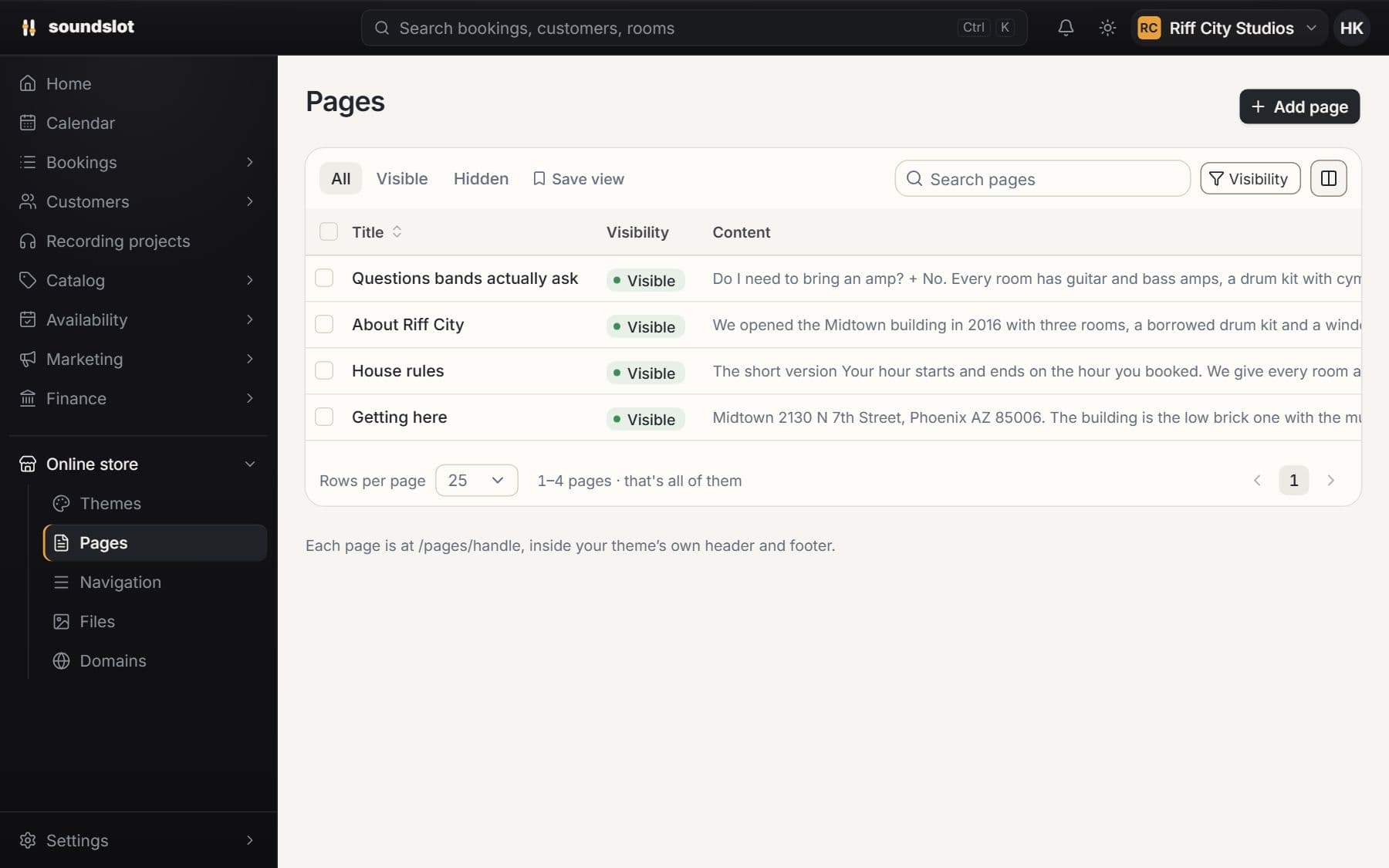
Pages and navigation
Manage room content, studio pages, menus, media and policy pages from the dashboard.
Publication controls
Work on a draft, preview the website and publish when it is ready. Keep the bookable catalog connected to the same room and rate records as the calendar.
Included on every plan
Custom themes must follow the supported theme format and validation rules. Checkout remains a separate protected surface with its own appearance settings. Domain registration is not included.
Compare plansCustom domains & search settings
Use your studio's own web address and manage page titles and descriptions. Soundslot provides storefront sitemaps, canonical URLs and domain verification.
- 1
Add the hostname
Enter the domain or subdomain you own in the storefront domain settings.
- 2
Configure DNS
Copy the required records into your DNS provider and check verification status in Soundslot.
- 3
Make it primary
Once the domain is ready, choose it as the primary address and review the live pages and search metadata.
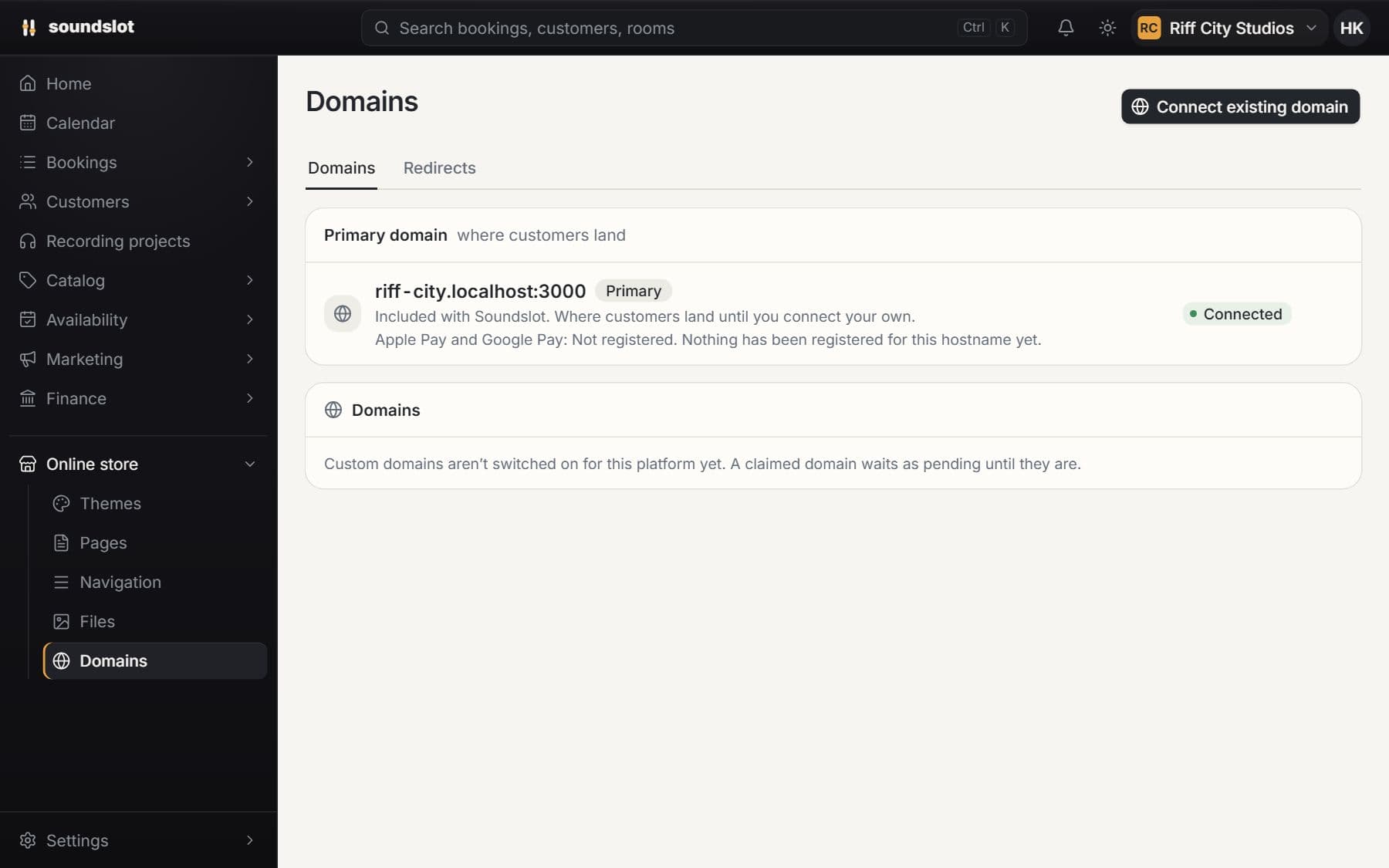
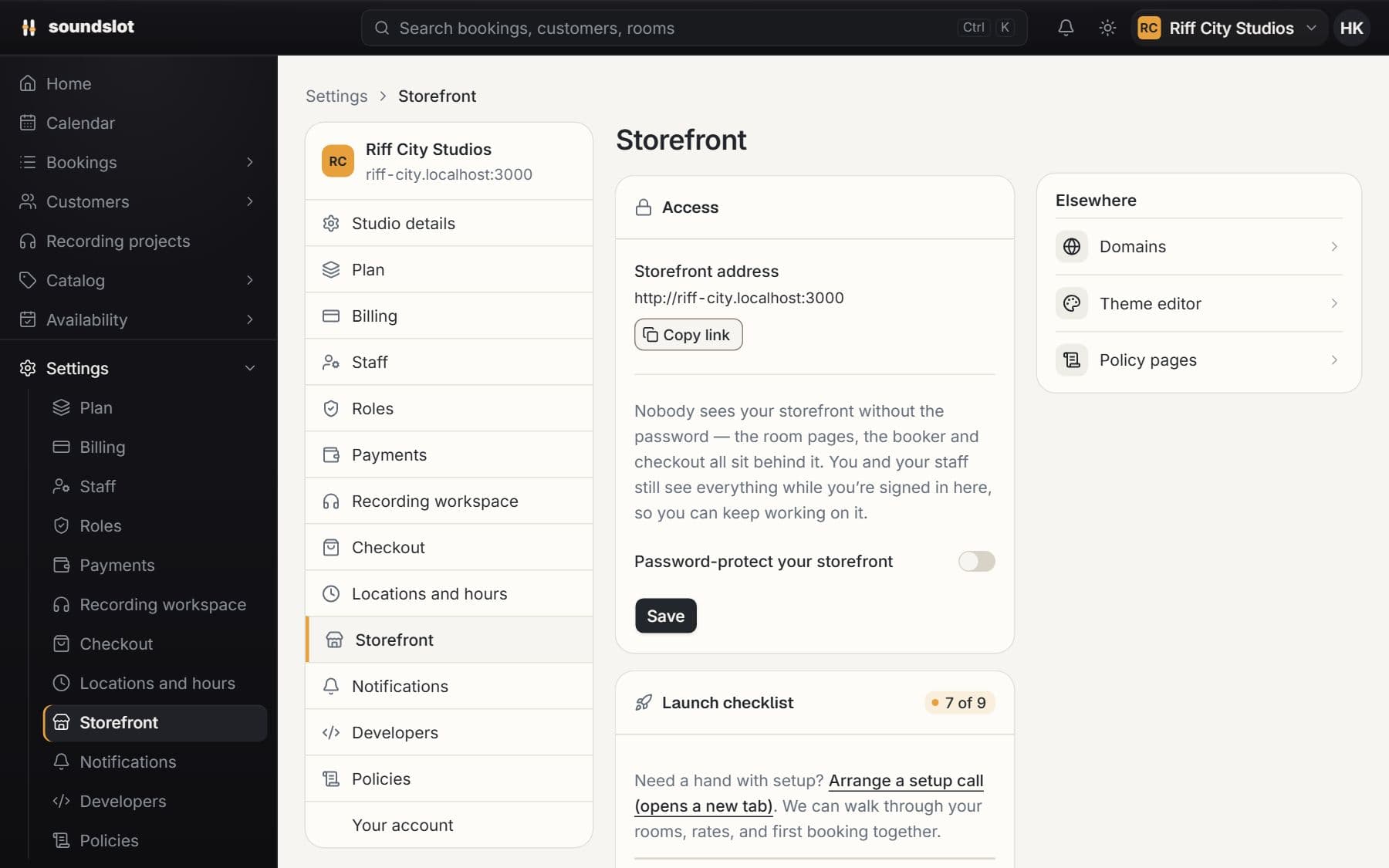
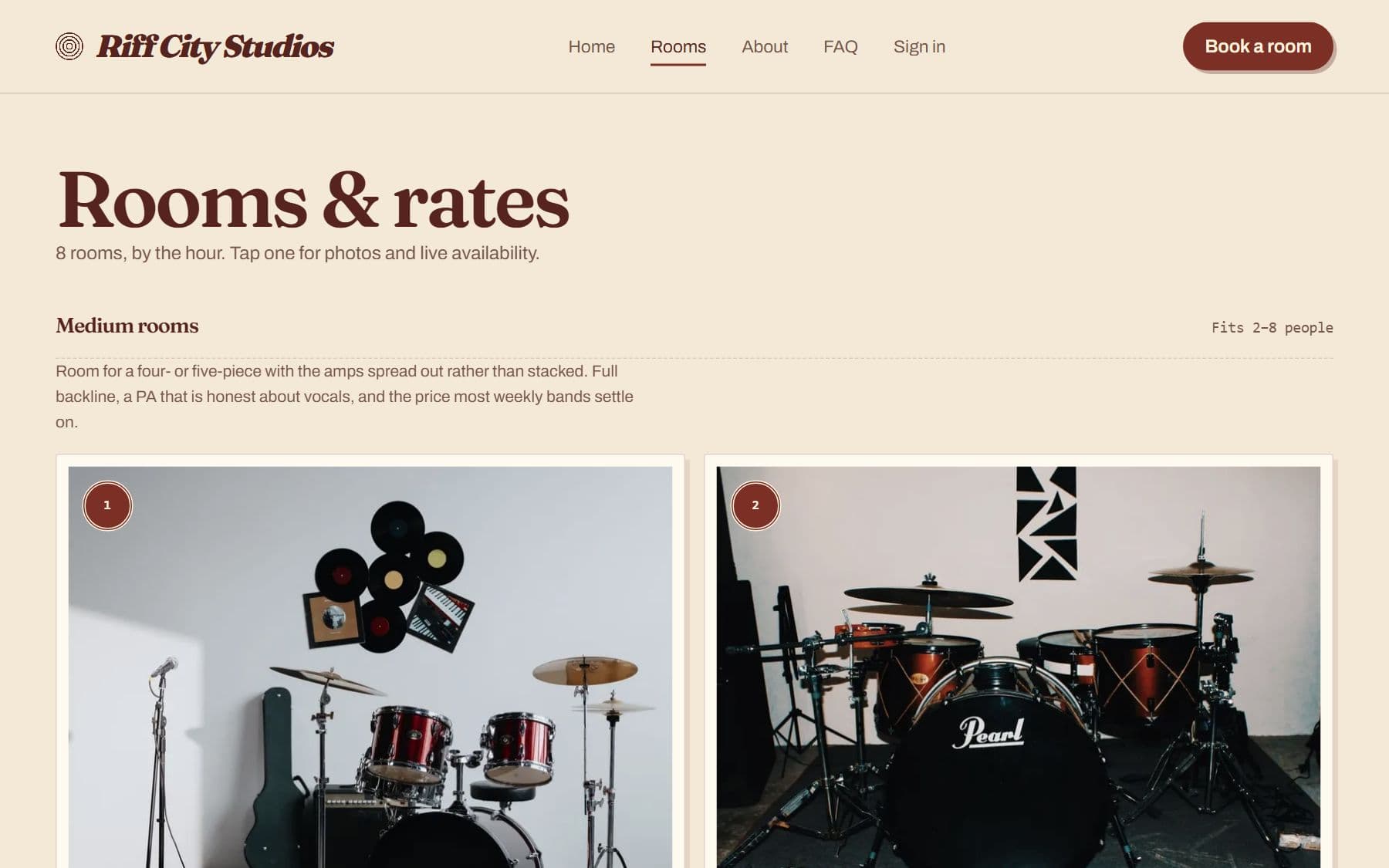
Studio address
Start with the assigned Soundslot subdomain or connect a hostname you own.
Domain verification
Add the DNS records shown in the domain settings and wait for verification and certificate readiness before making it primary.
Search metadata
Set supported SEO titles and descriptions. Storefront pages use the studio's canonical address and sitemap.
Included on every plan
You need access to the domain's DNS settings. Verification depends on DNS propagation and certificate provisioning. Search settings do not guarantee search rankings.
Compare plansMore of Soundslot
See it with your studio's setup.
Bring your rooms, rates and questions. We'll walk through the features you'd use.
From $39/mo · 14 days free · card required · nothing charged until day 15