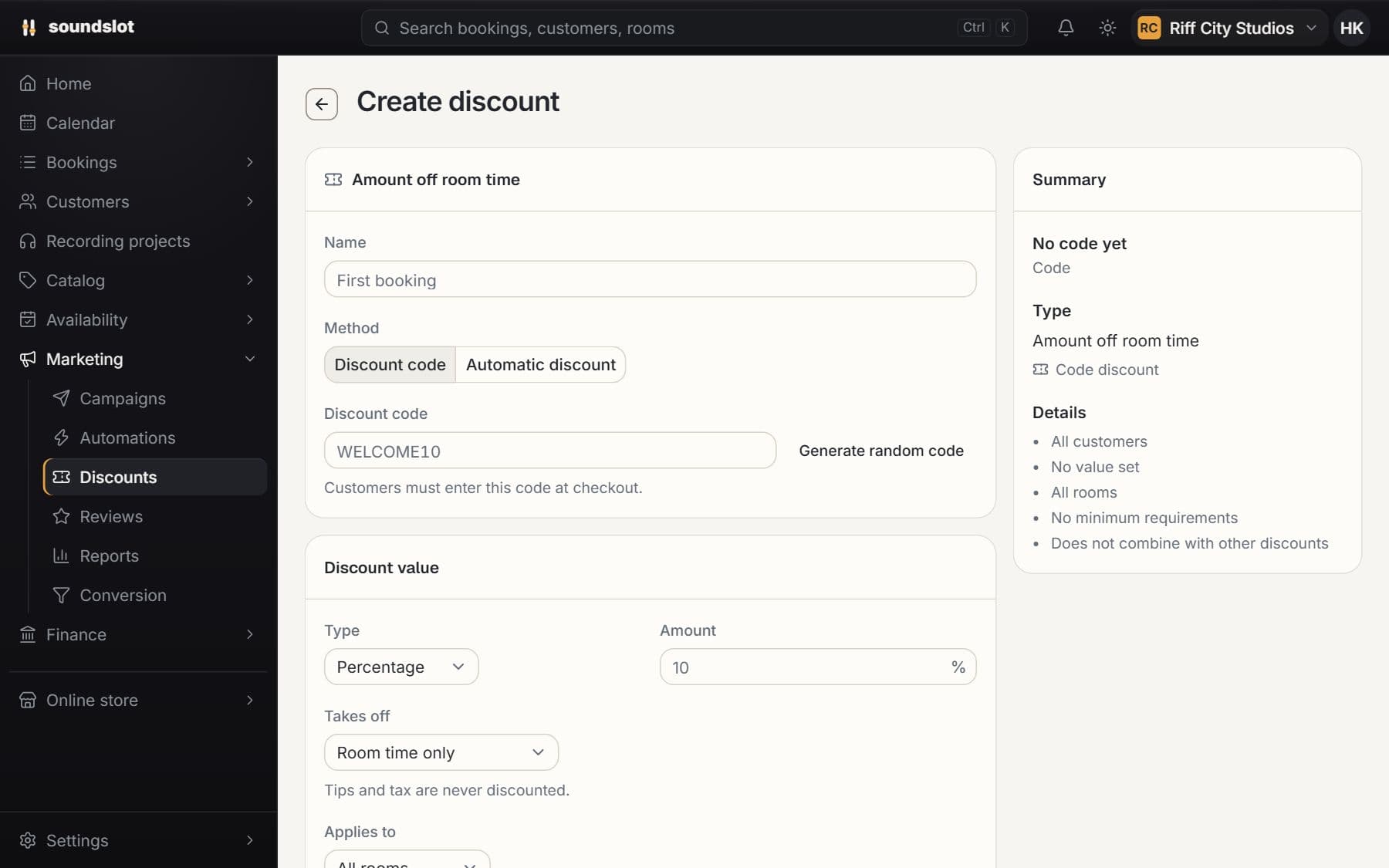
Discount codes & automatic offers
Create codes customers enter at checkout or automatic discounts for qualifying bookings. Control the value, eligible rooms, dates and redemption limits.
- Discount values
- Eligibility rules
- Usage and combinations
Automations, campaigns and segments read the booking history the calendar writes. Confirmations, reminders, discounts and reviews come from the same place.
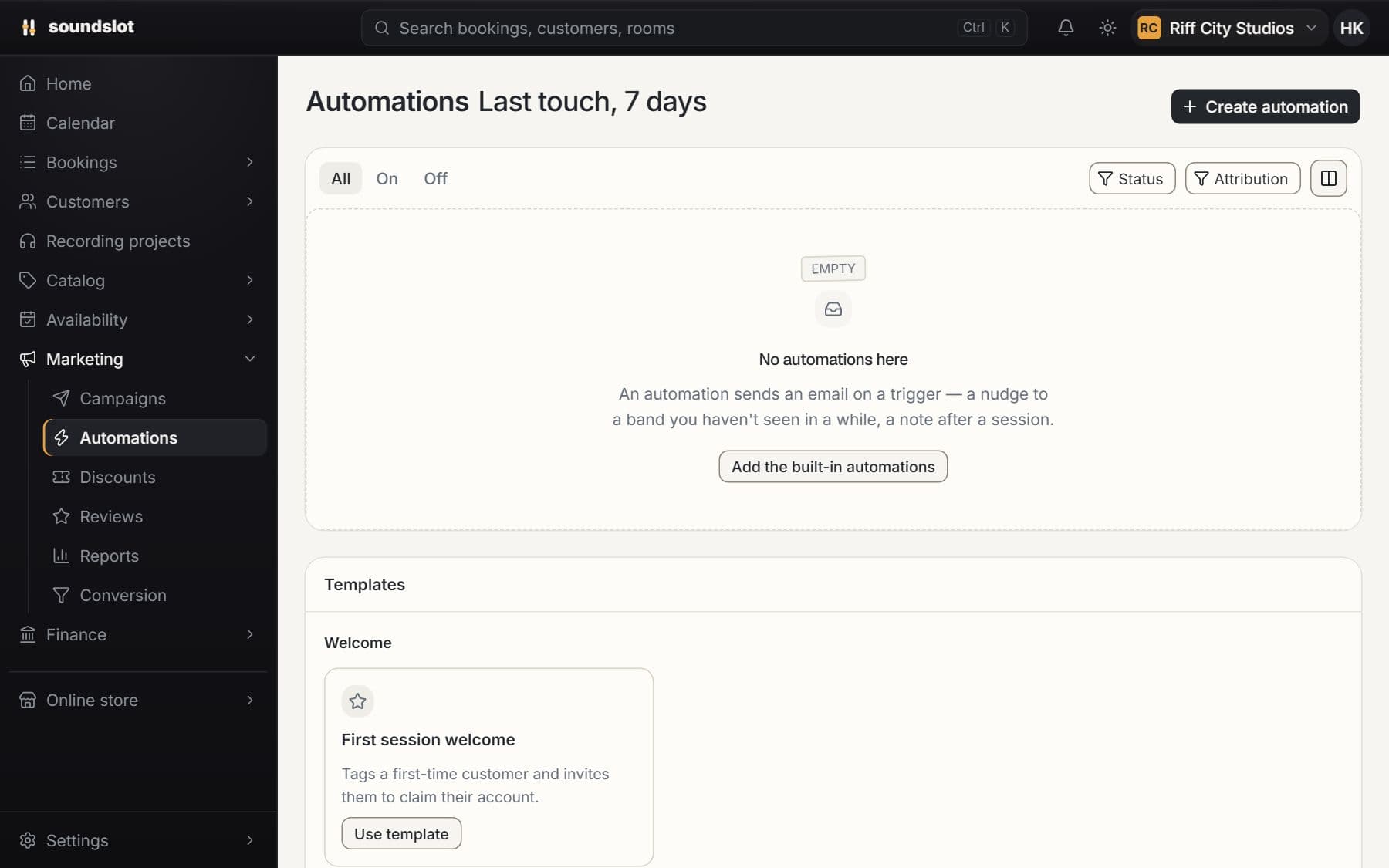
Build workflows that respond to customer and booking activity. Combine conditions, delays, messages and customer tags, then inspect each run.
Start with a template or select the event that should enroll a customer.
Set conditions, delays and actions, and write the messages the customer should receive.
Turn the workflow on and review its run history. Use campaign and booking reports to assess the results.
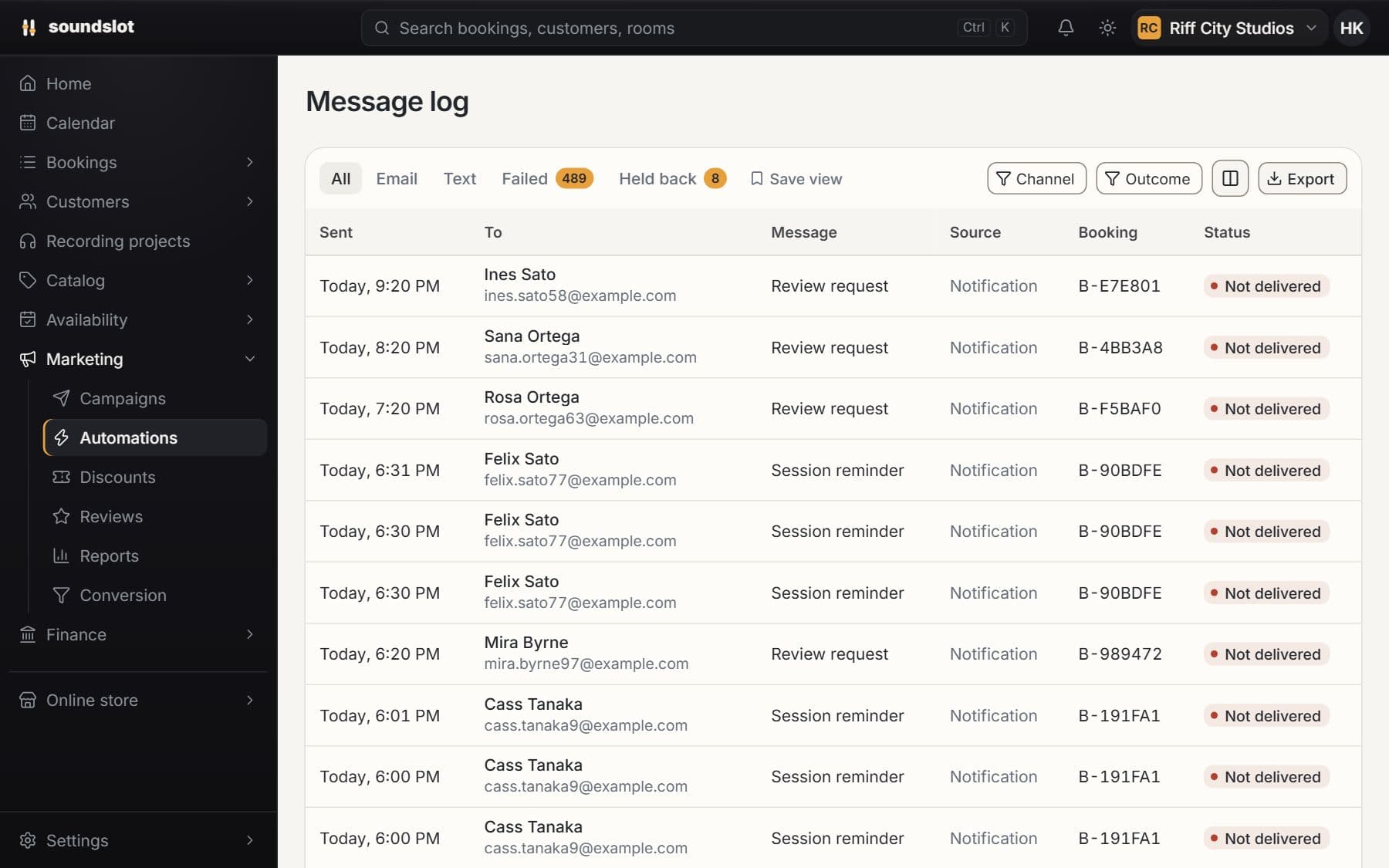
Start from a supported event or segment trigger and use conditions to decide which customers continue through the workflow.
Add waits, send messages and apply customer tags. Start with a supplied template or configure your own flow.
Inspect enrollments and activity to see which steps ran. Enable, disable or duplicate a workflow from Automations.
Custom workflow editing requires the plan shown here. Marketing sends respect consent, unsubscribe and suppression rules. Email and SMS delivery require the corresponding configured transport.
Compare plansDraft a message for a customer segment, preview the audience and send it now or schedule it. Review delivery activity from the campaign record.
Select the customer segment that should receive this particular message.
Choose the template, review its content and inspect the audience preview.
Send immediately or schedule the campaign, then open its record to review delivery outcomes.
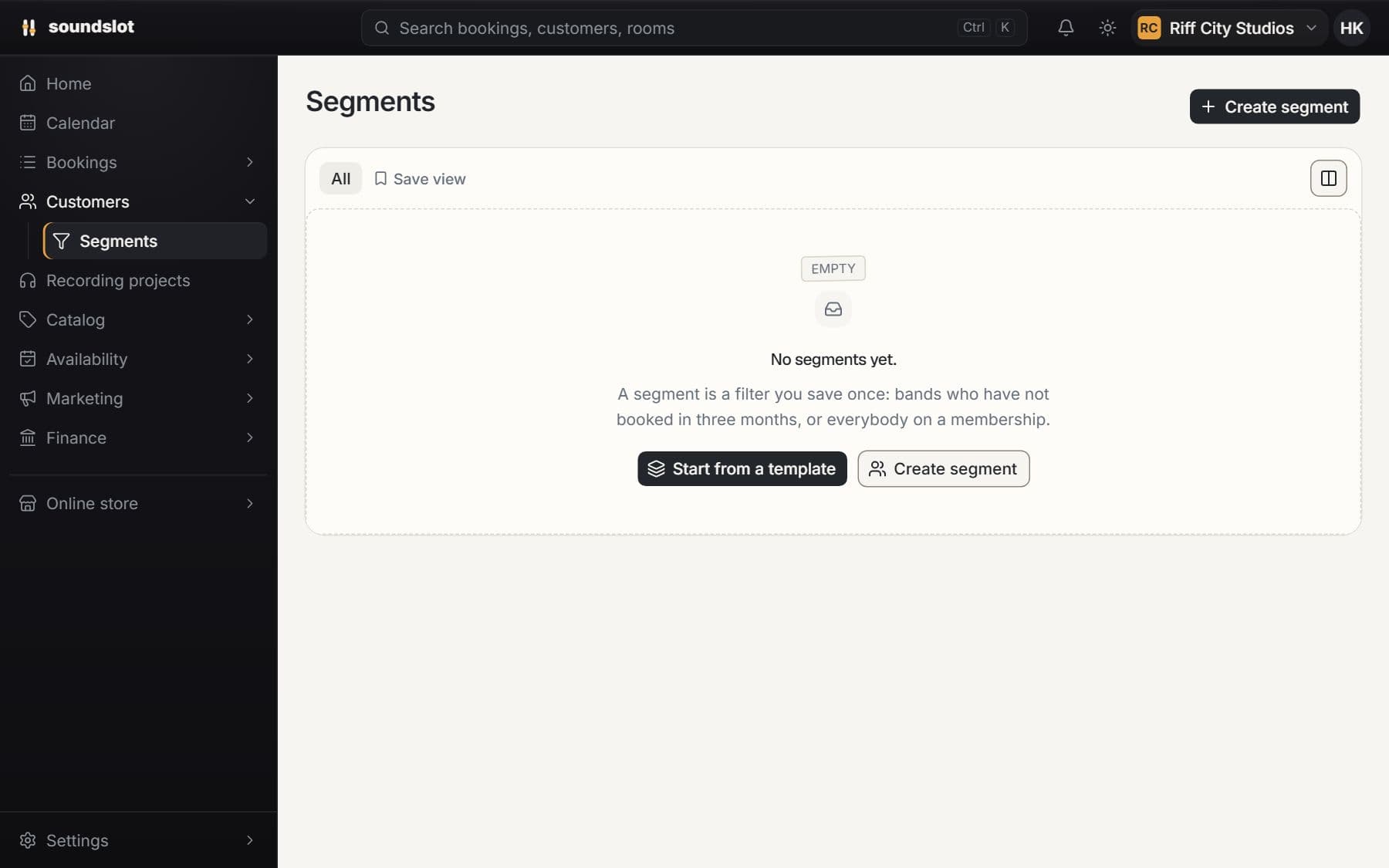
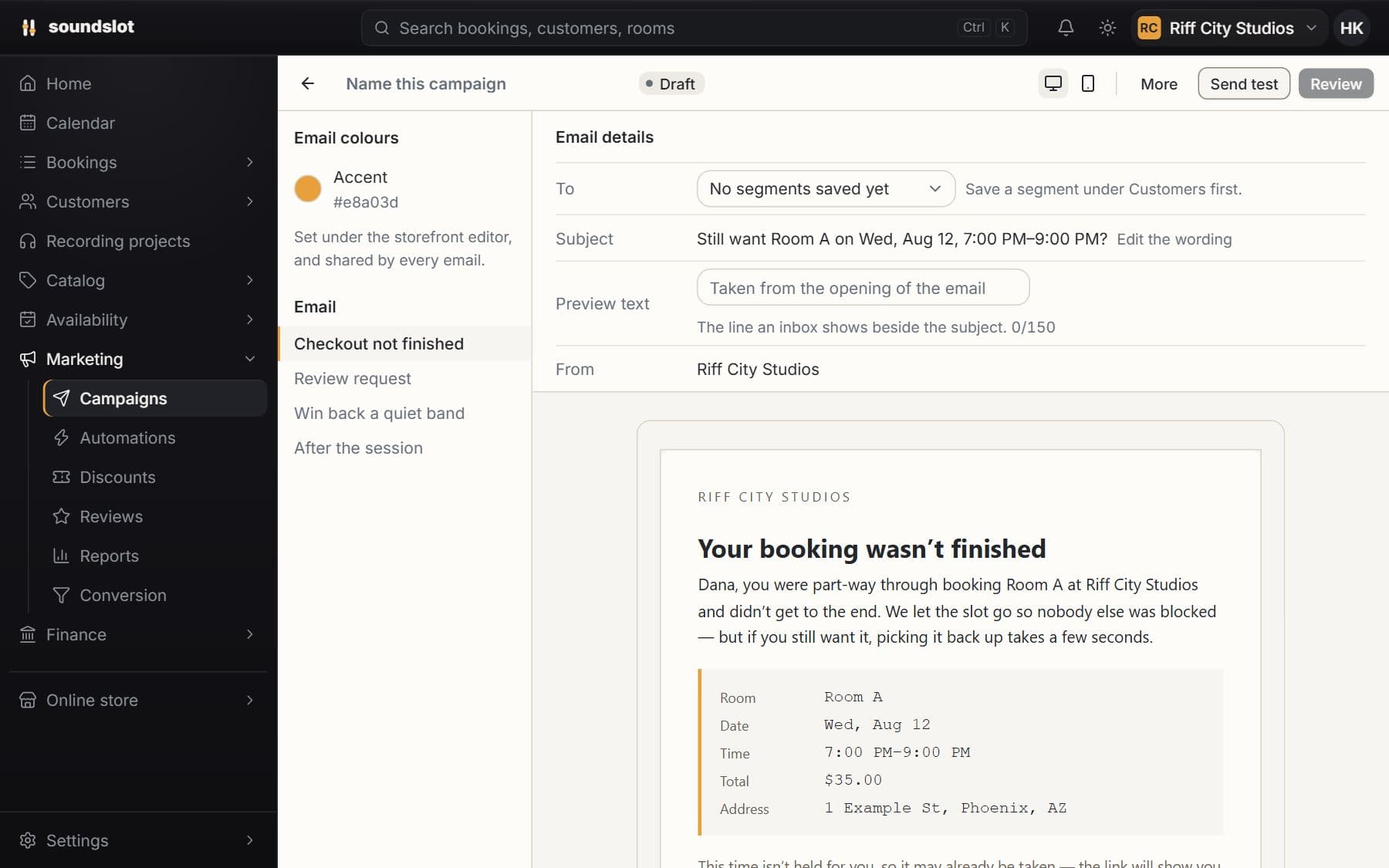
Choose a name, marketing template and segment. Drafting does not send anything.
Review the audience before sending. Choose immediate delivery or a scheduled time; cancel a scheduled send before it starts.
Inspect the campaign and recipient outcomes. Message delivery and tracked engagement are recorded separately from booking revenue.
Email and SMS need their delivery connections configured. Marketing preferences and suppressions can exclude customers from an audience. Usage charges apply separately from the subscription.
Compare plansGroup customers using booking activity, spending, tags and profile information. Reuse those groups as campaign audiences and automation conditions.
Open Customers → Segments and define the group using the available filters.
Check the segment preview and adjust the rules if the audience is too broad or narrow.
Select it when drafting a campaign or configuring a segment-based automation.
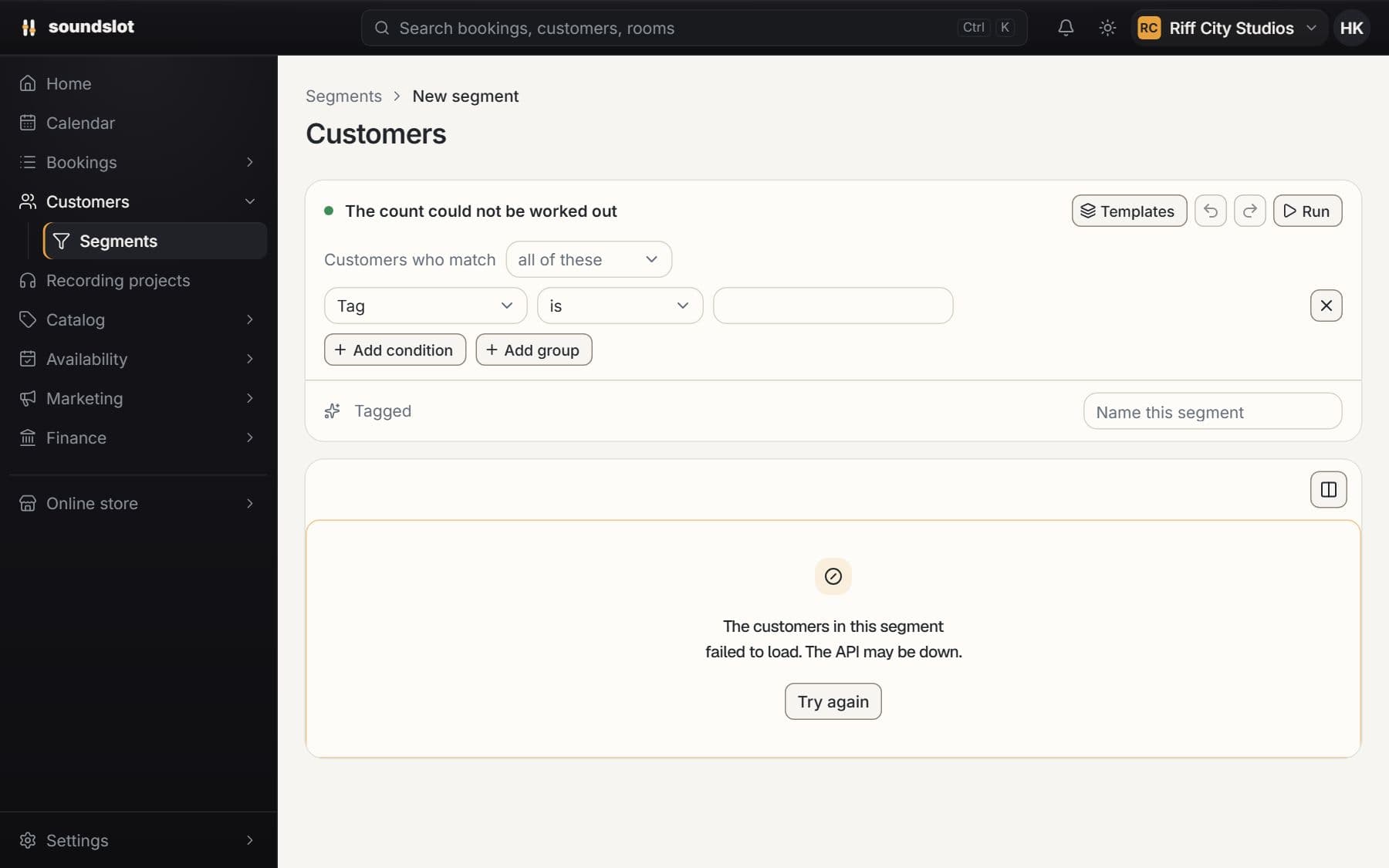
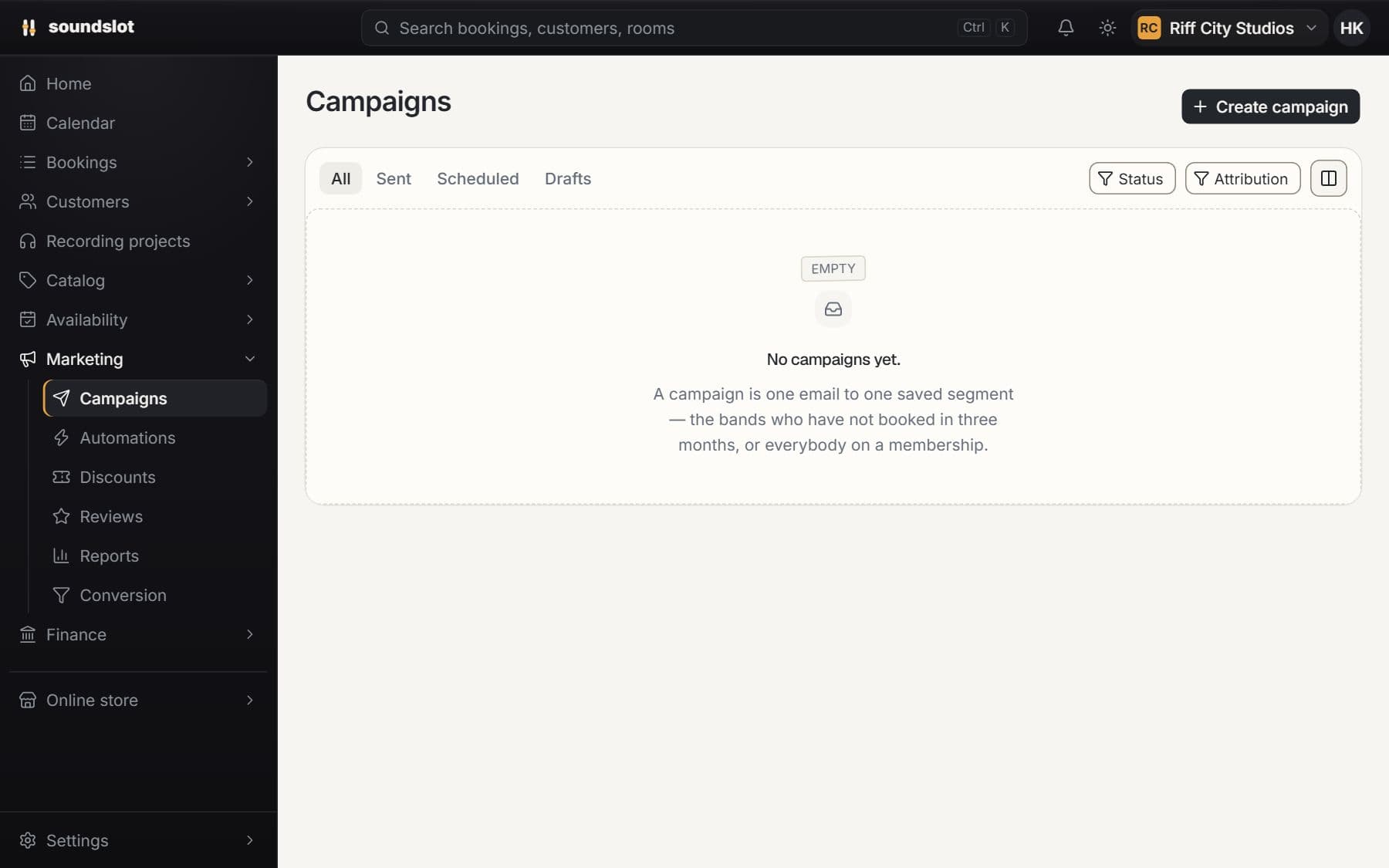
Build a segment from supported customer filters rather than copying contacts into another mailing list.
Inspect the customers matching a segment before using it in a campaign.
Use the saved segment for future campaigns and supported automation triggers as customer activity changes.
Segment membership does not override marketing consent. A matching customer may still be excluded from a send because they unsubscribed or their address is suppressed.
Compare plansCreate codes customers enter at checkout or automatic discounts for qualifying bookings. Control the value, eligible rooms, dates and redemption limits.
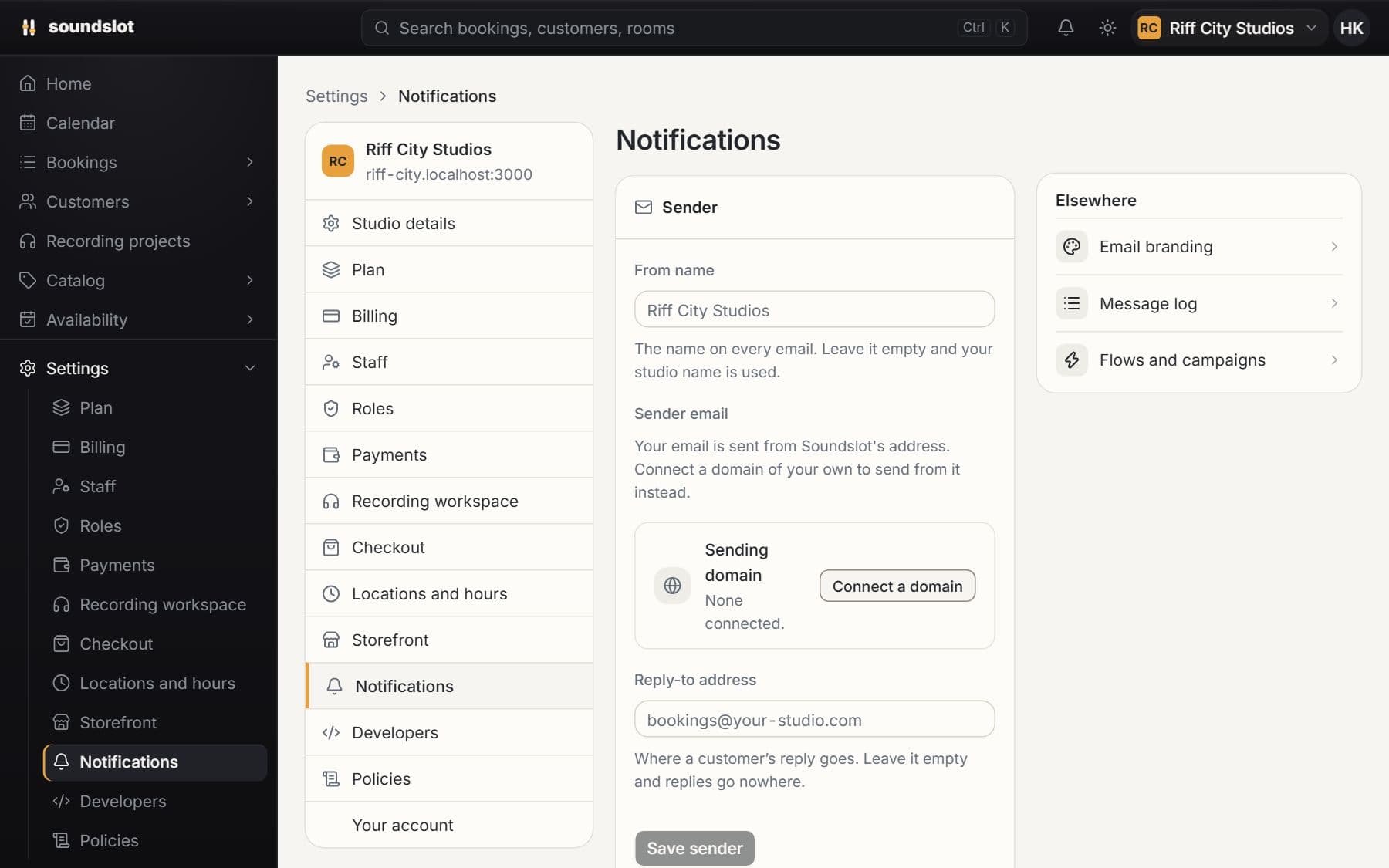
Send booking confirmations, reminders and payment-related messages from the same system that holds the session details and customer record.
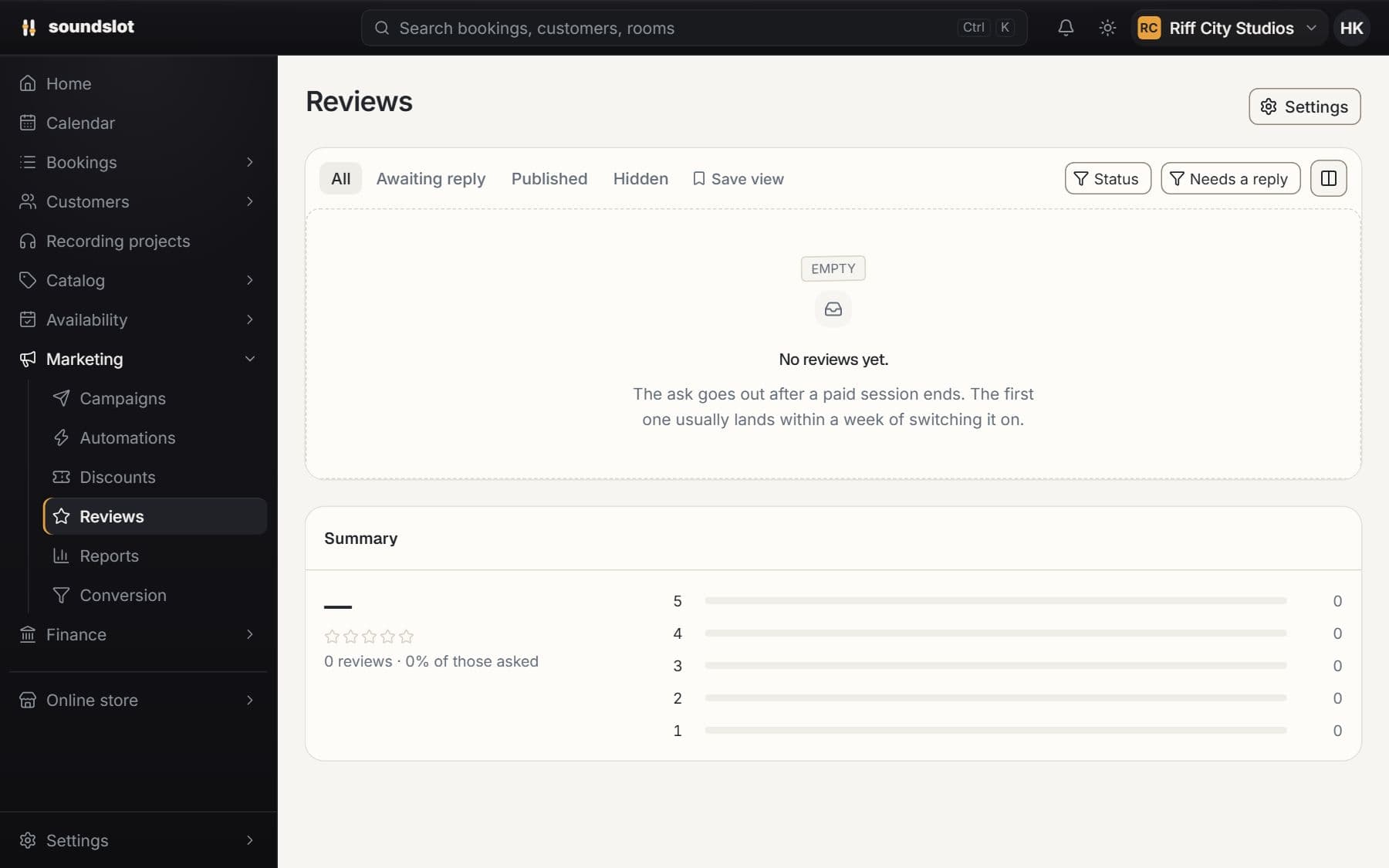
Request reviews after eligible paid sessions, moderate submissions and reply from the studio dashboard. Published reviews can appear on your storefront.
Bring your rooms, rates and questions. We'll walk through the features you'd use.
From $39/mo · 14 days free · card required · nothing charged until day 15