Every customer,on one record.
Contact details, sessions, payments and credit on one record. Customers get an account on your site, and recording projects keep session files with the people who need them.
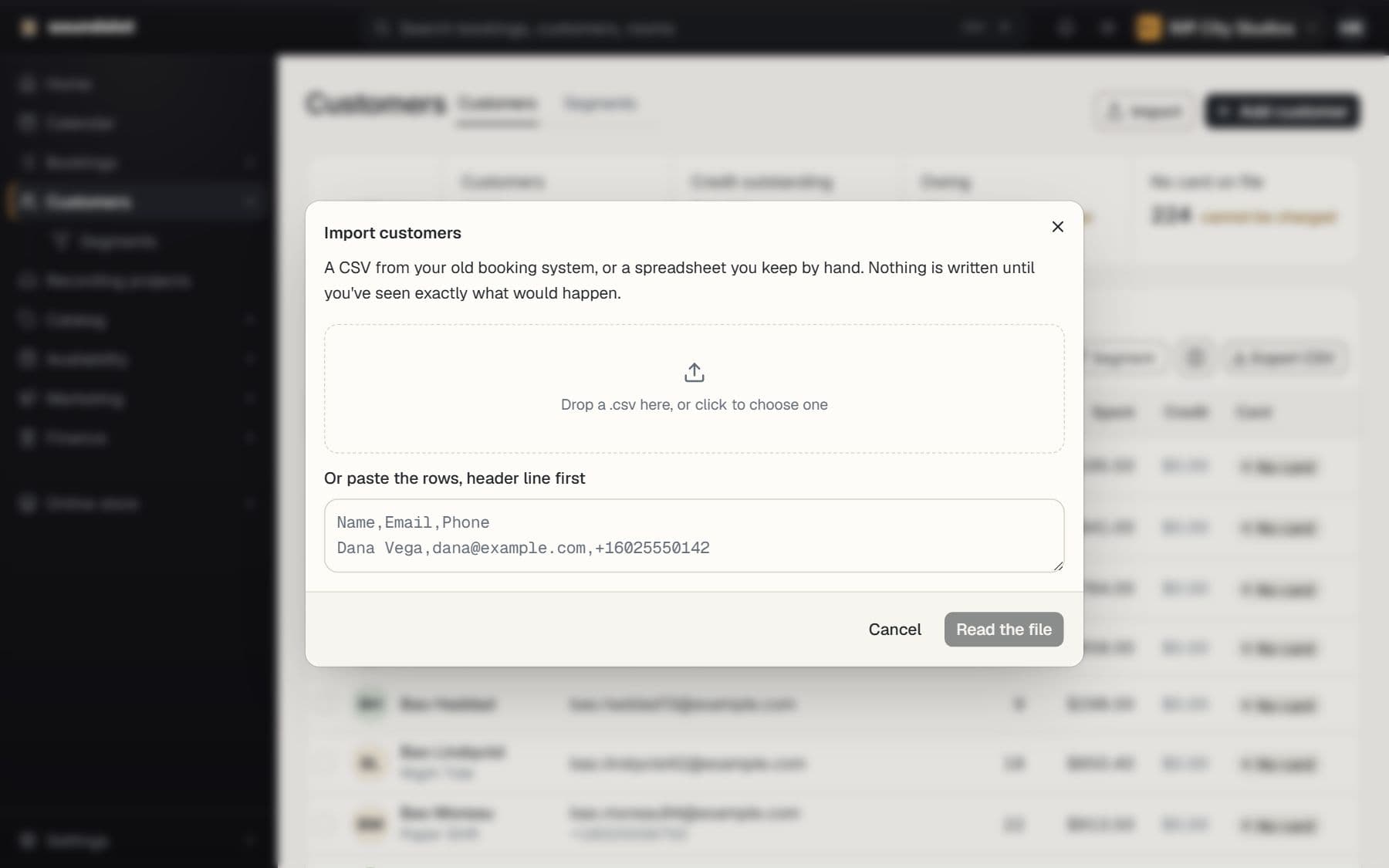
Customer records & imports
Keep contact details, booking history, account credit and customer notes together. Import existing customers and merge duplicate records.
- 1
Add or import customers
Create a customer manually or import a CSV using the supported fields.
- 2
Connect their activity
Bookings and account transactions appear against the customer's studio record.
- 3
Handle the next visit
Find the existing customer when booking, check their history and use the same record for follow-up.
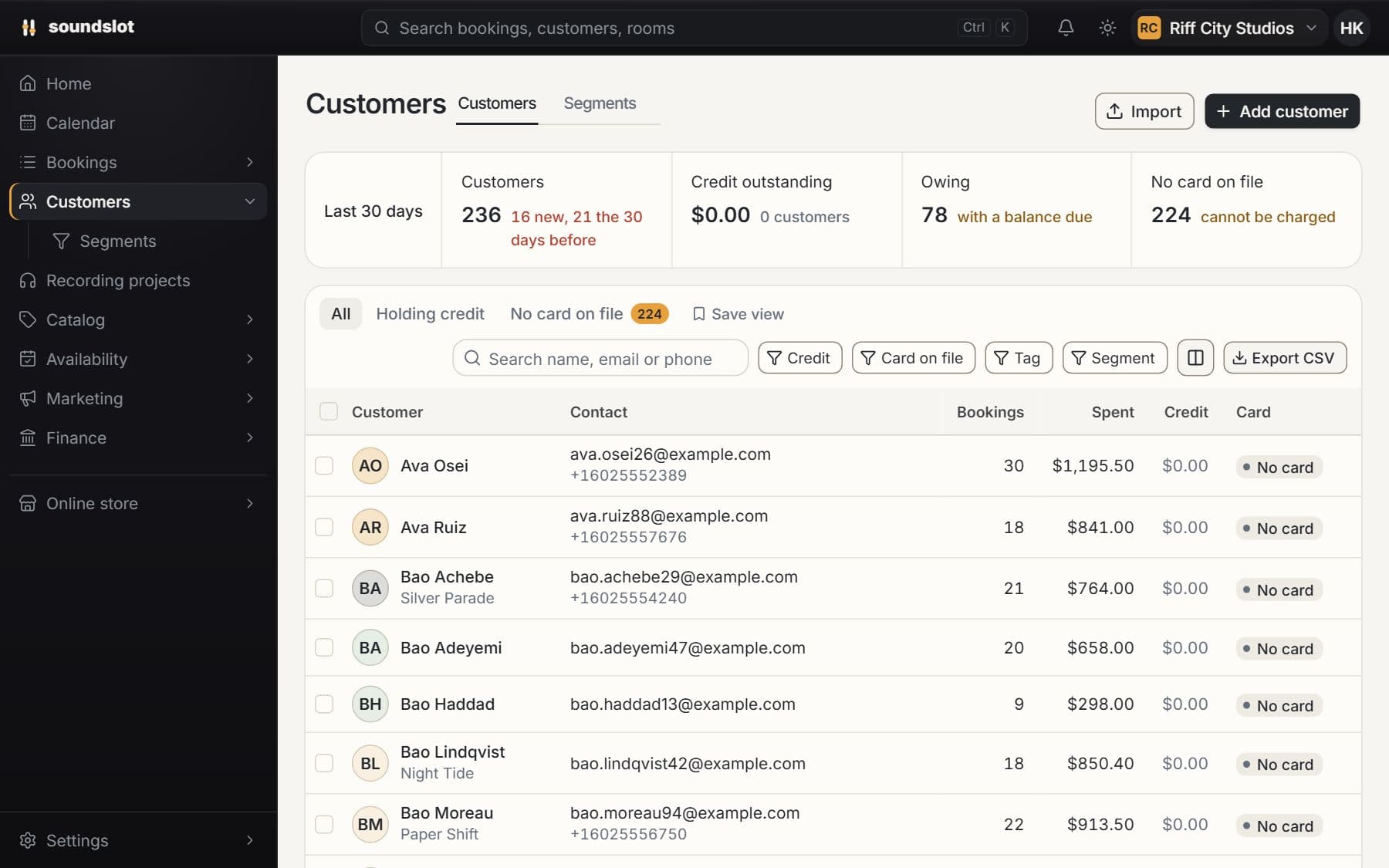
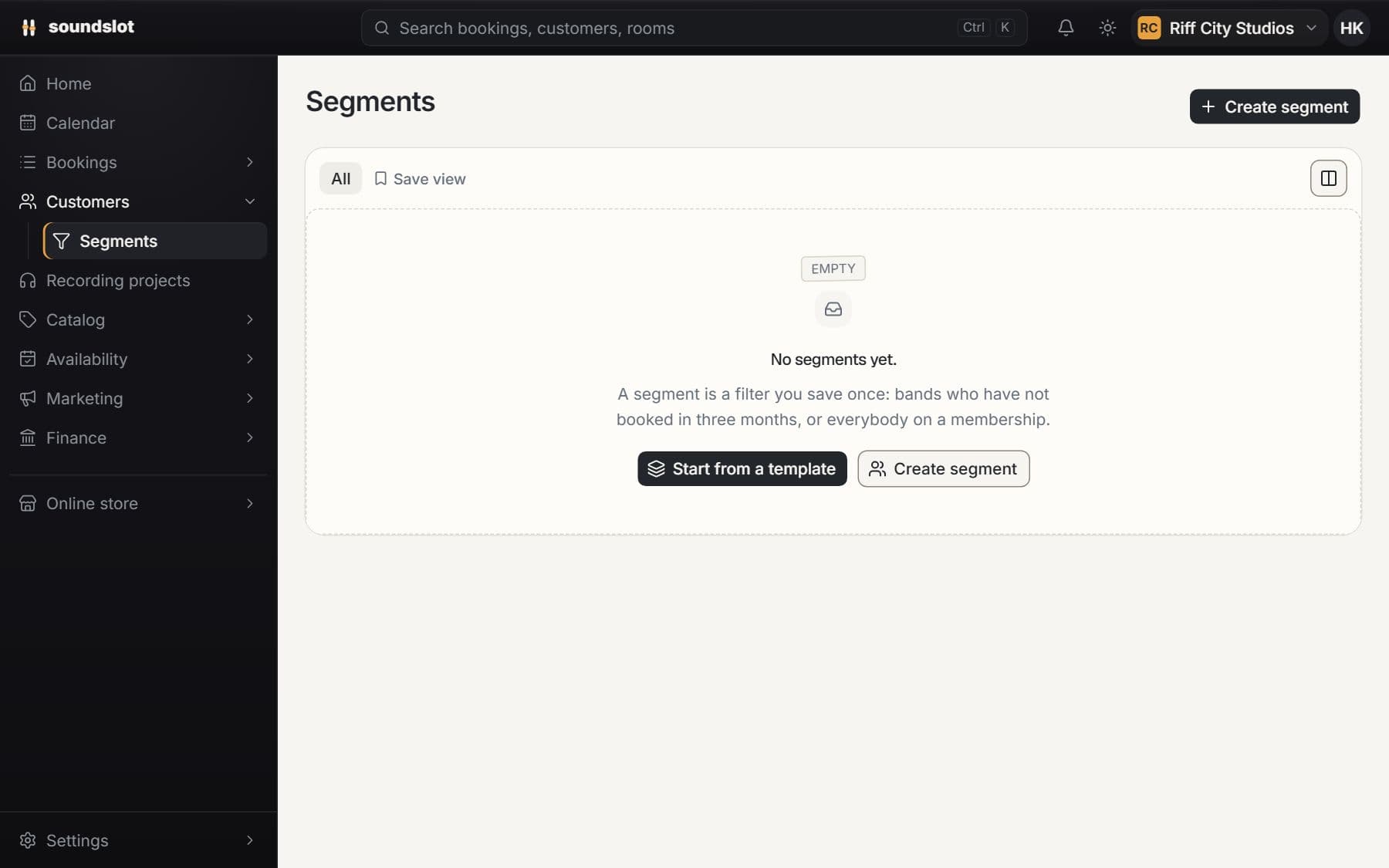
Customer history
Open a customer to inspect their bookings, payment records, saved payment methods and credit ledger.
Account administration
Edit contact information, invite customers to claim their account, and request that they save a payment method.
Imports and duplicates
Import customers from CSV and merge duplicates. Customer data export and erasure tools are available to authorized staff.
Included on every plan
Imports require a correctly structured CSV. A payment-method request lets the customer enter card details securely; importing a customer does not import their payment credentials.
Compare plansCustomer accounts & bands
Give customers an account for their sessions, payments, credit and band details. Shared recording projects appear there when the studio enables them.
- 1
Sign in to the studio
The customer opens the account page from your storefront and signs in.
- 2
Choose an account area
Sessions, Payments, Bands and Account settings have separate navigation while keeping the customer in your studio's site.
- 3
Manage an existing booking
The customer opens a session to inspect its details and the actions your rules permit.
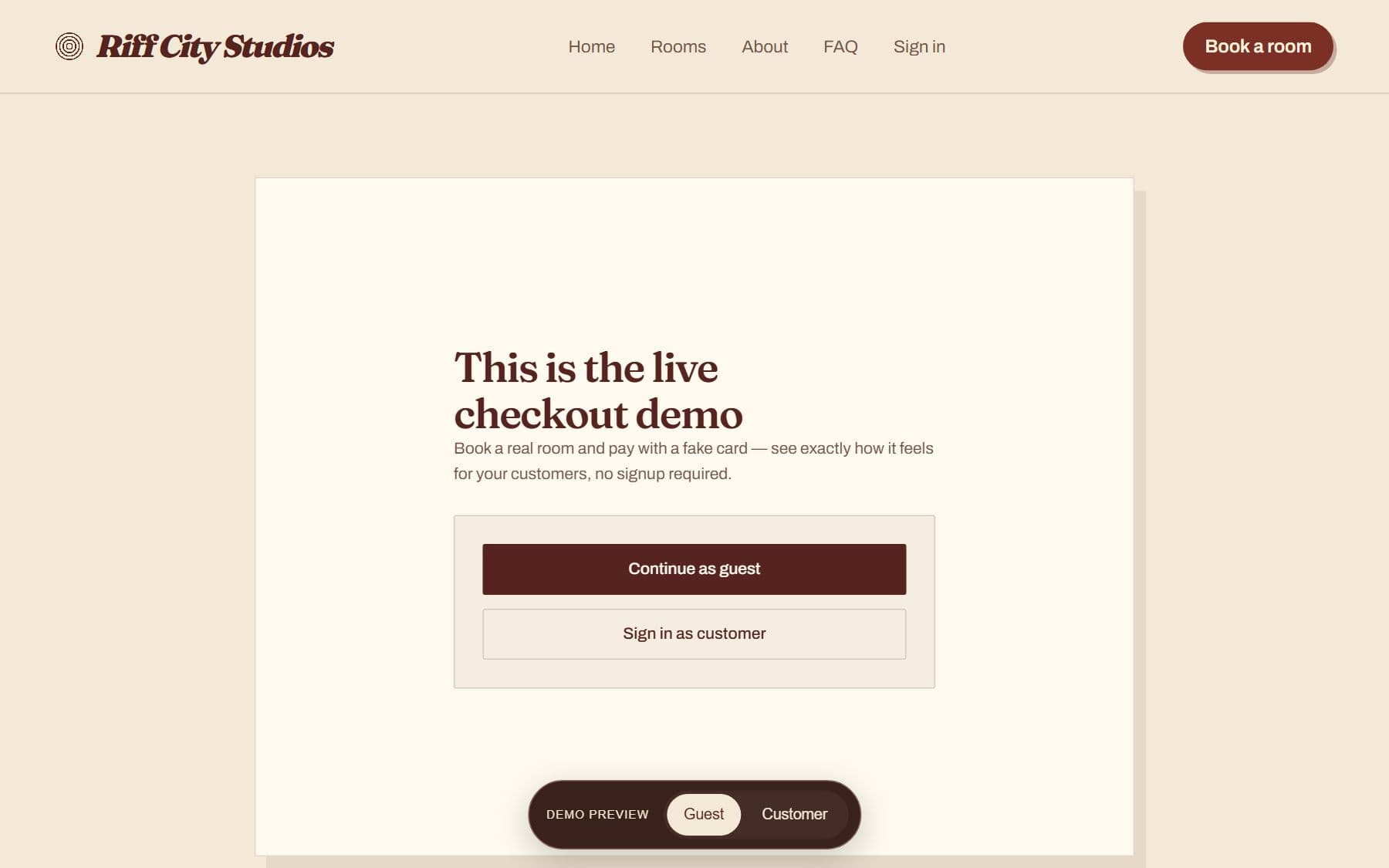
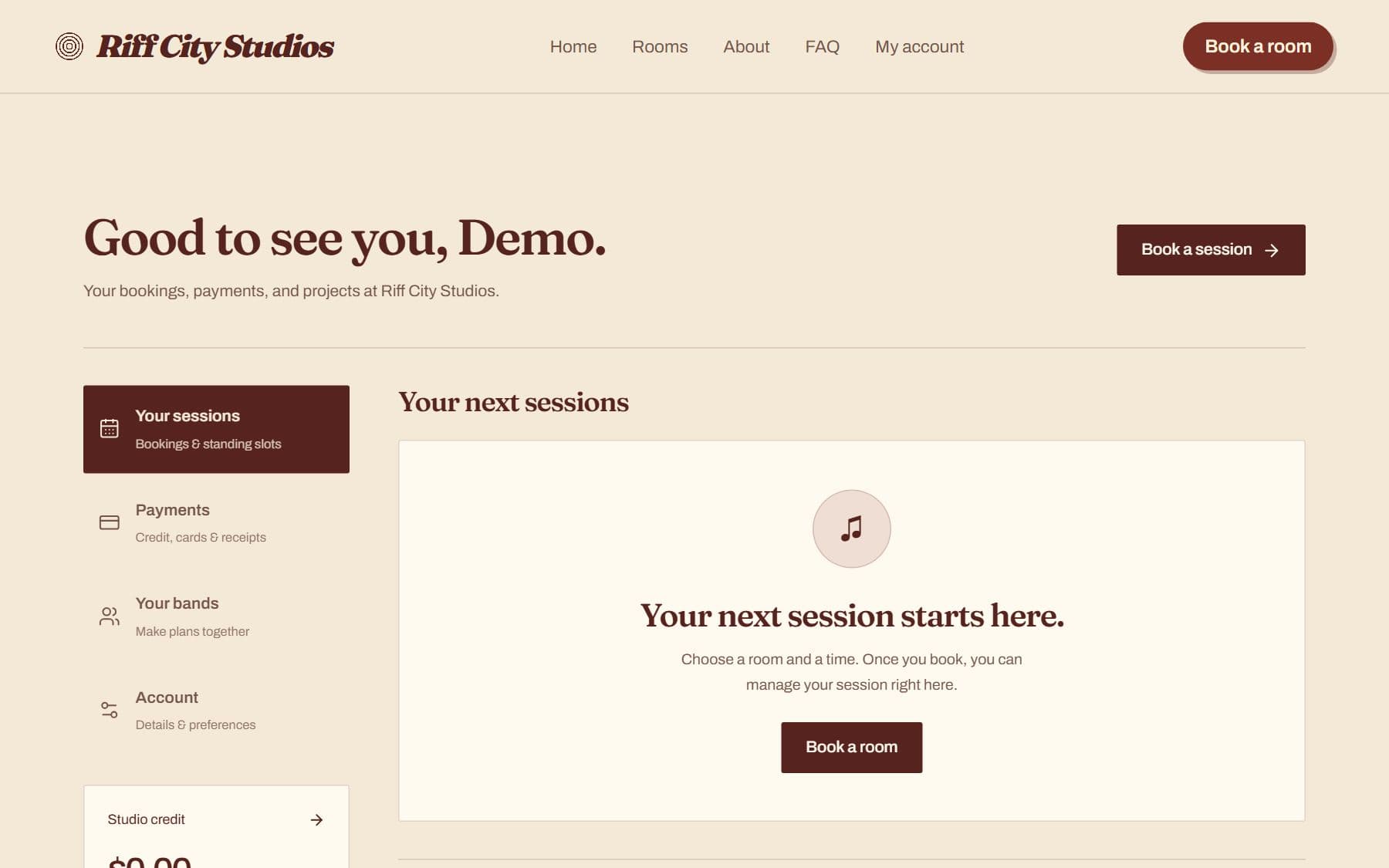
Session management
Customers review their bookings and use the cancellation options available under the studio's rules.
Payments and documents
Customers manage saved payment methods, check credit and access their available receipts or invoices.
Bands and calendar feeds
Keep band membership information in the account and subscribe to a personal booking calendar.
Included on every plan
A signed-in account is required for account tools. Project access also requires a verified email and an explicit project relationship.
Compare plansRecording projects & file delivery
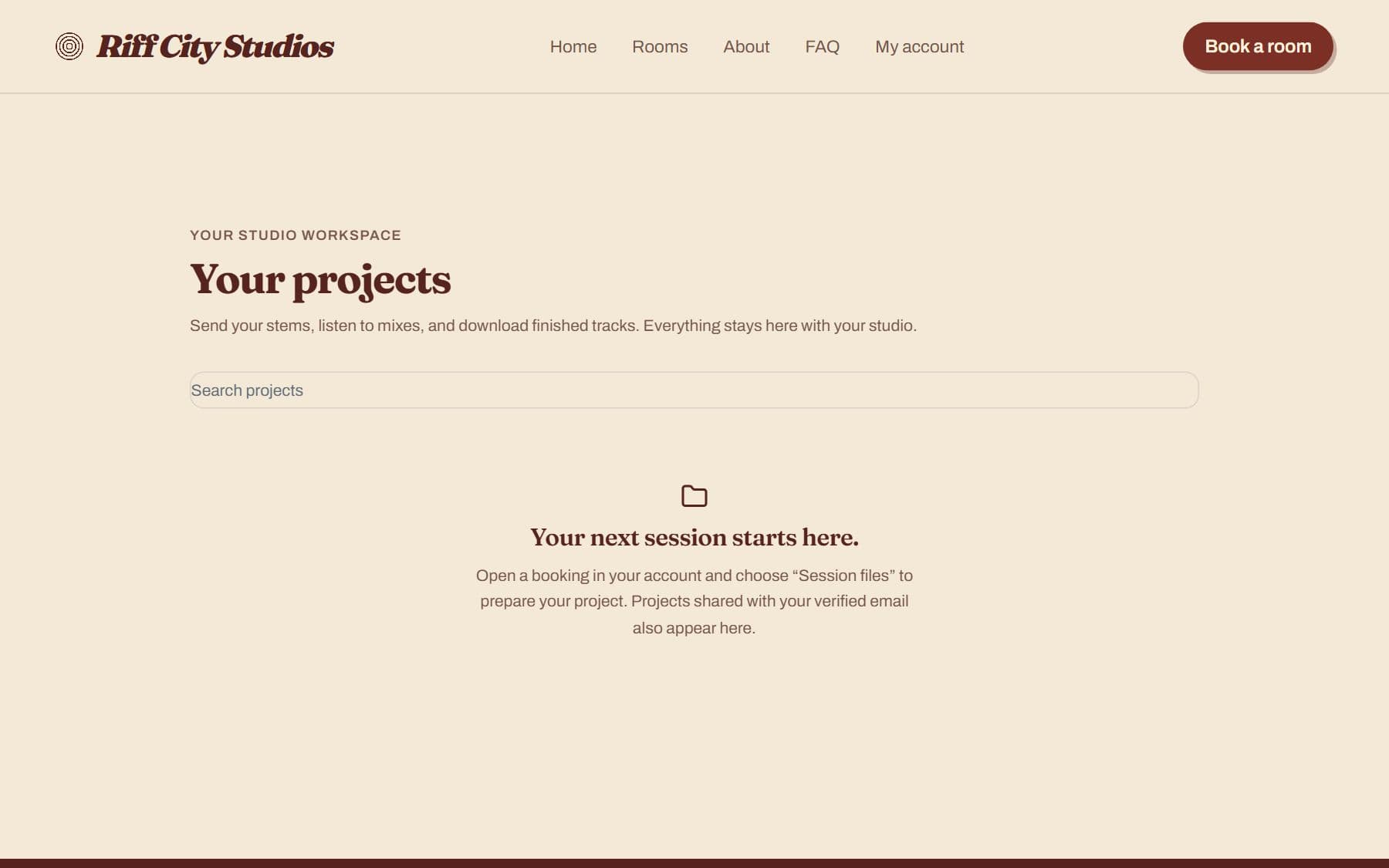
Link recording sessions to a project, request files and share finished work with selected clients. Customers upload through their studio account.
- 1
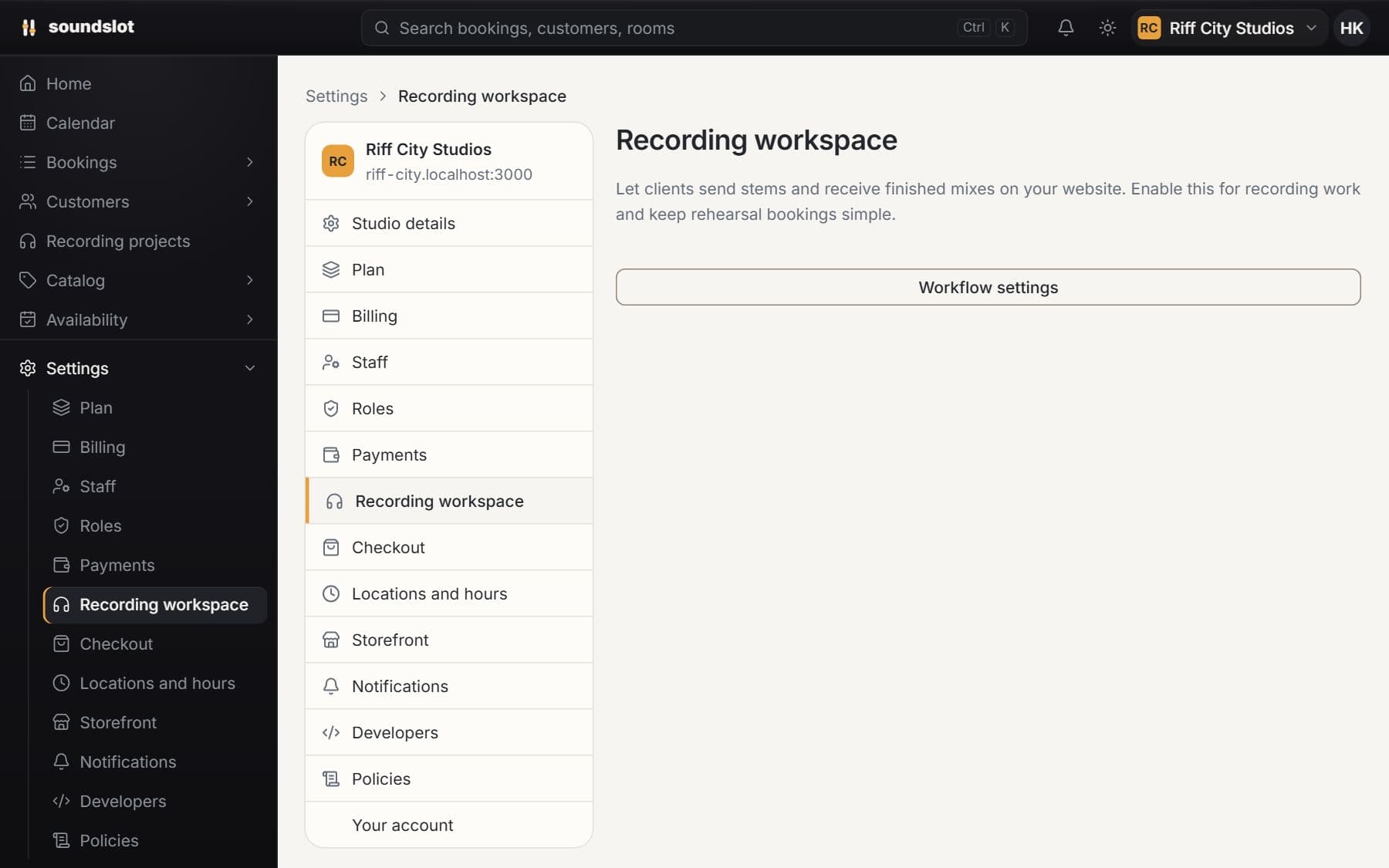
Enable the recording workflow
In Settings, select the recording rooms and write preparation instructions. Rehearsal-only rooms can remain unchecked.
- 2
Collect session files
After booking, the customer follows the project link, signs in with a verified email and uploads the requested material.
- 3
Share completed work
Staff upload files, choose their audience and send the delivery notification. Recipients open the project to download.
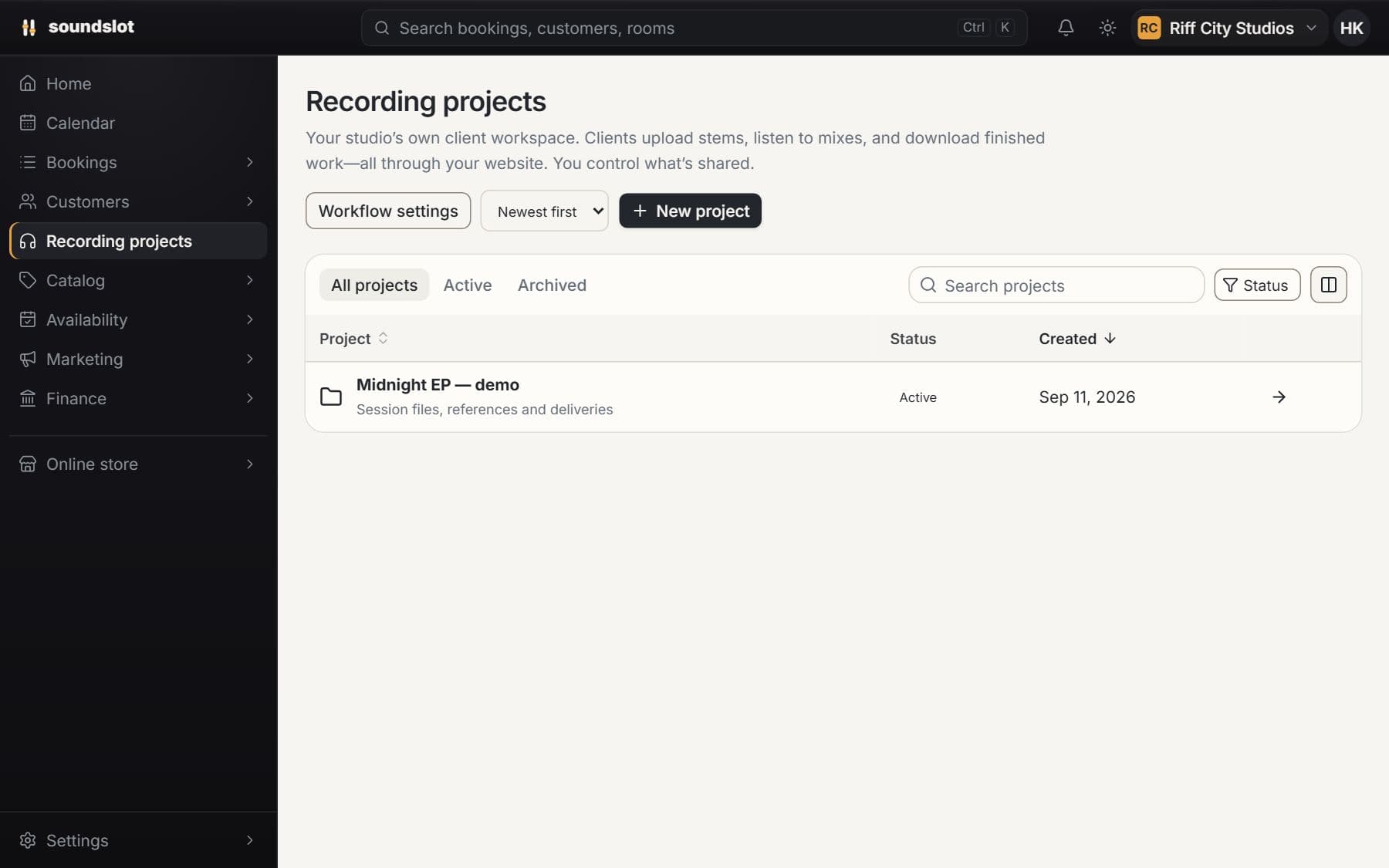
Projects across sessions
Keep project notes, files and multiple bookings together. Invite collaborators with view or contribution access.
File requests
Ask a project member for specific files. Requests can be open, submitted or closed; submission requires an uploaded file.
Controlled delivery
Studio uploads start private. Share a file with all project members or selected clients, then send a delivery notification that links to the project.
Included on every plan
Enable the module and configure project storage before using uploads. File access requires sign-in; email notifications do not contain attachments. Uploads are separate from checkout. Each project supports up to 100 file requests.
Compare plansMore of Soundslot
See it with your studio's setup.
Bring your rooms, rates and questions. We'll walk through the features you'd use.
From $39/mo · 14 days free · card required · nothing charged until day 15