Receipts, invoices & tax
Keep payment documents attached to bookings and customers. Download receipts and invoices as PDFs and export document records for bookkeeping.
- Payment documents
- Tax and line items
- Accounting export
Customers pay online at checkout or at the desk, and every payment stays on its session. Reports, receipts, invoices and payouts read the same records.
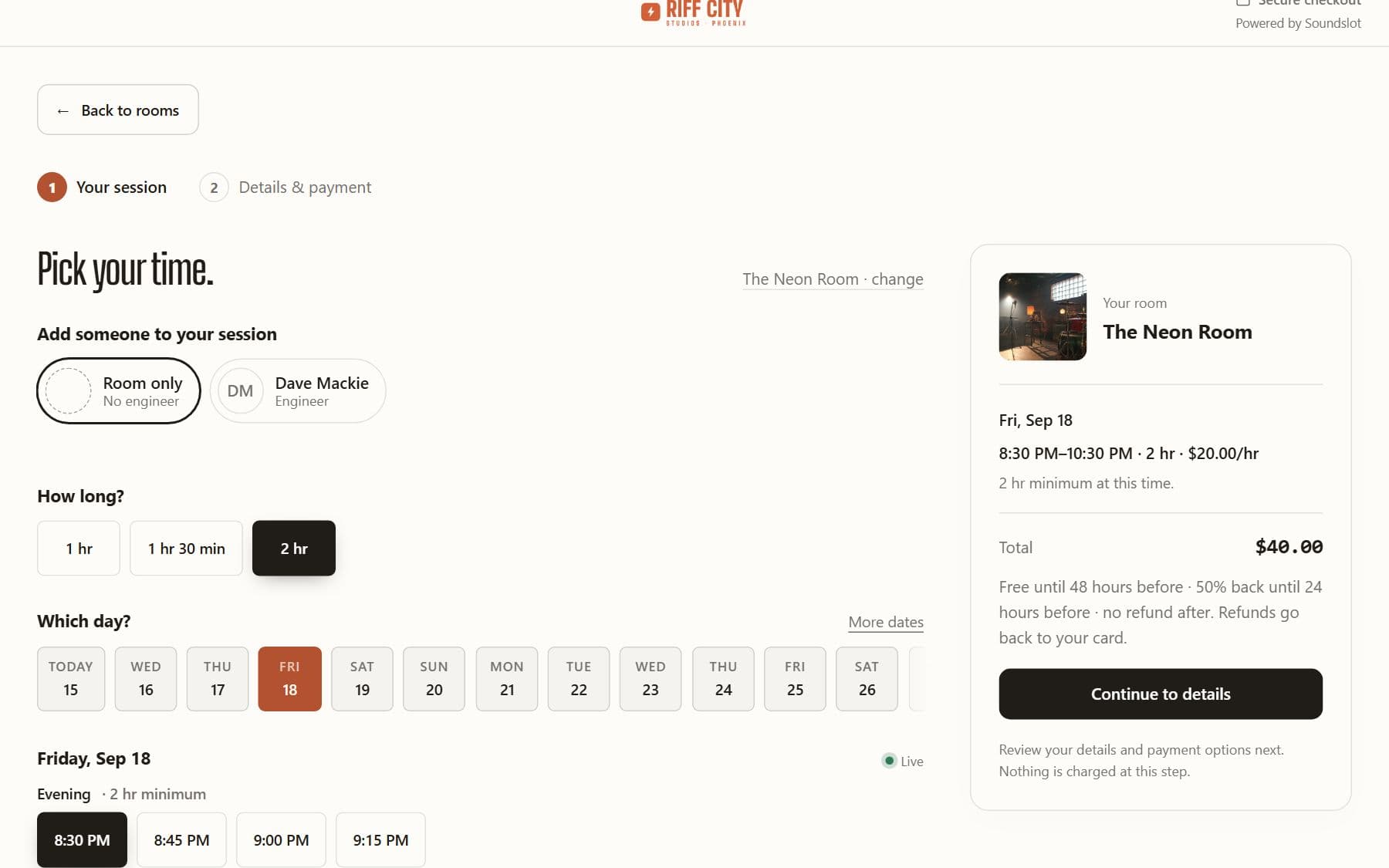
Let customers review session details, discounts, payment terms and the amount due before paying through your studio's connected account with Stripe or Square.
The customer chooses the room, activity, date and duration and receives a priced selection.
Checkout validates availability and the amount due before processing the payment or approval authorization.
A successful payment confirms the booking where approval is not required. The confirmation shows the session details and available next actions.
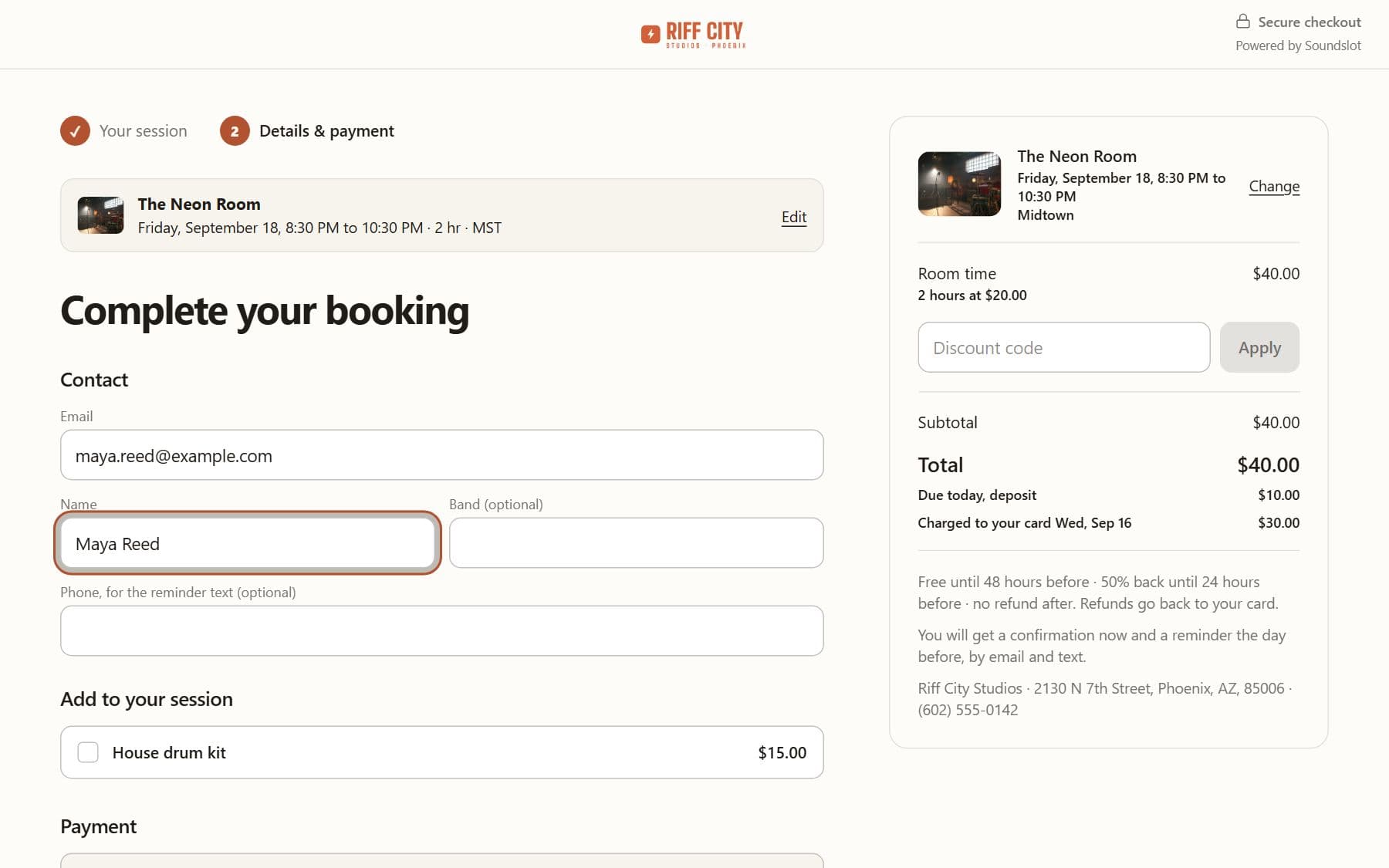
Show room time, equipment, discounts, tax and the amount due. Available account credit and membership benefits are applied through the booking rules.
Use card payment and supported Apple Pay or Google Pay wallets. Wallet visibility depends on the provider, browser, device and domain setup.
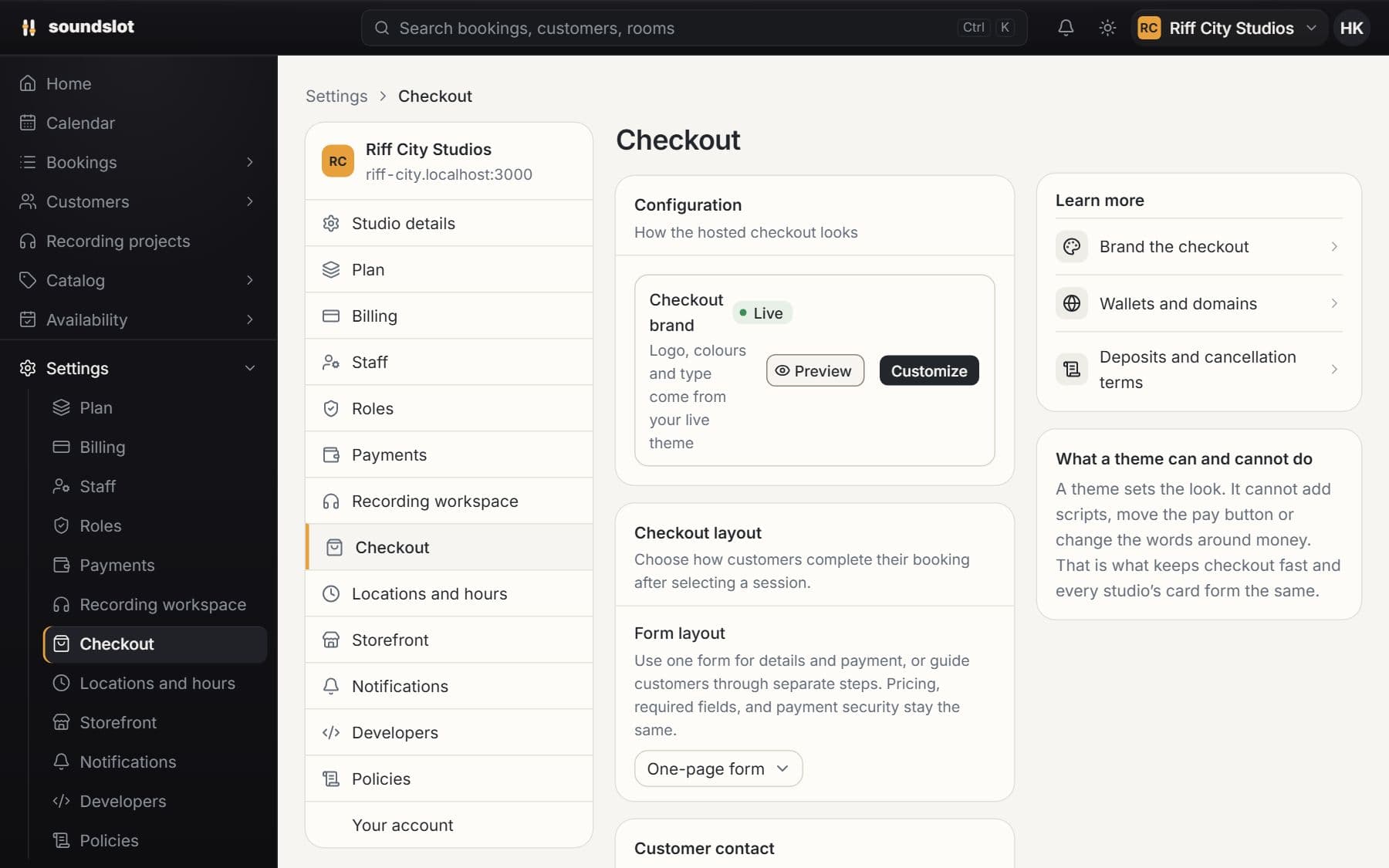
Configure phone and band-name collection, discount-code entry, saved-card options and the supported confirmation actions.
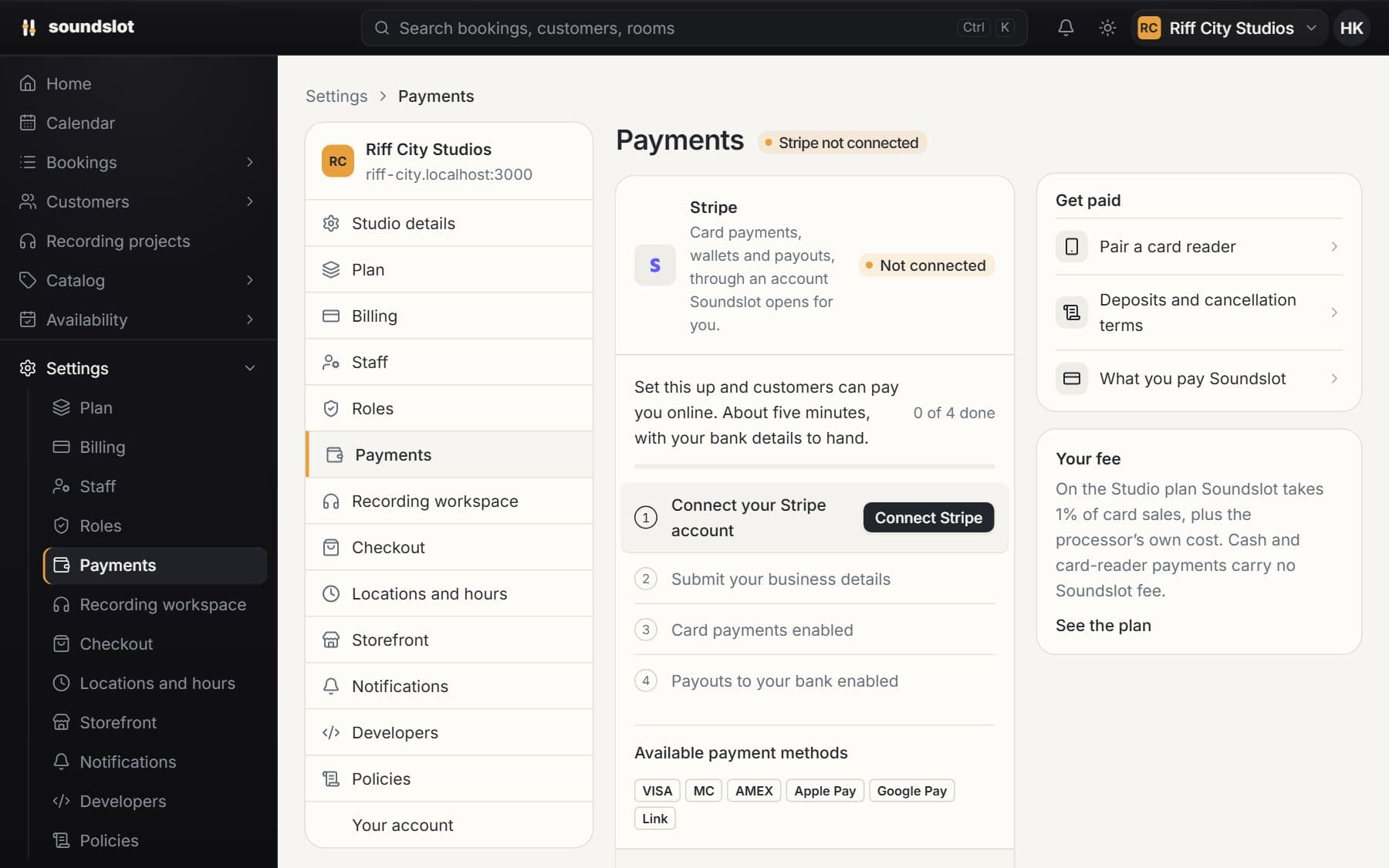
Connect a payment provider before accepting live payments. Processor fees are separate. Checkout has its own brand settings and a protected layout; a storefront theme does not replace the payment form. Preview studios use demonstration payments.
Compare plansReview revenue by date, room and location. Inspect refunds, cancellations, discounts and processor payouts, with CSV exports for further analysis.
Open Reports and select the period and location you want to review.
Compare the totals, then open the room, payment or payout details relevant to the question.
Download the available CSV and use it in your reporting or bookkeeping process.
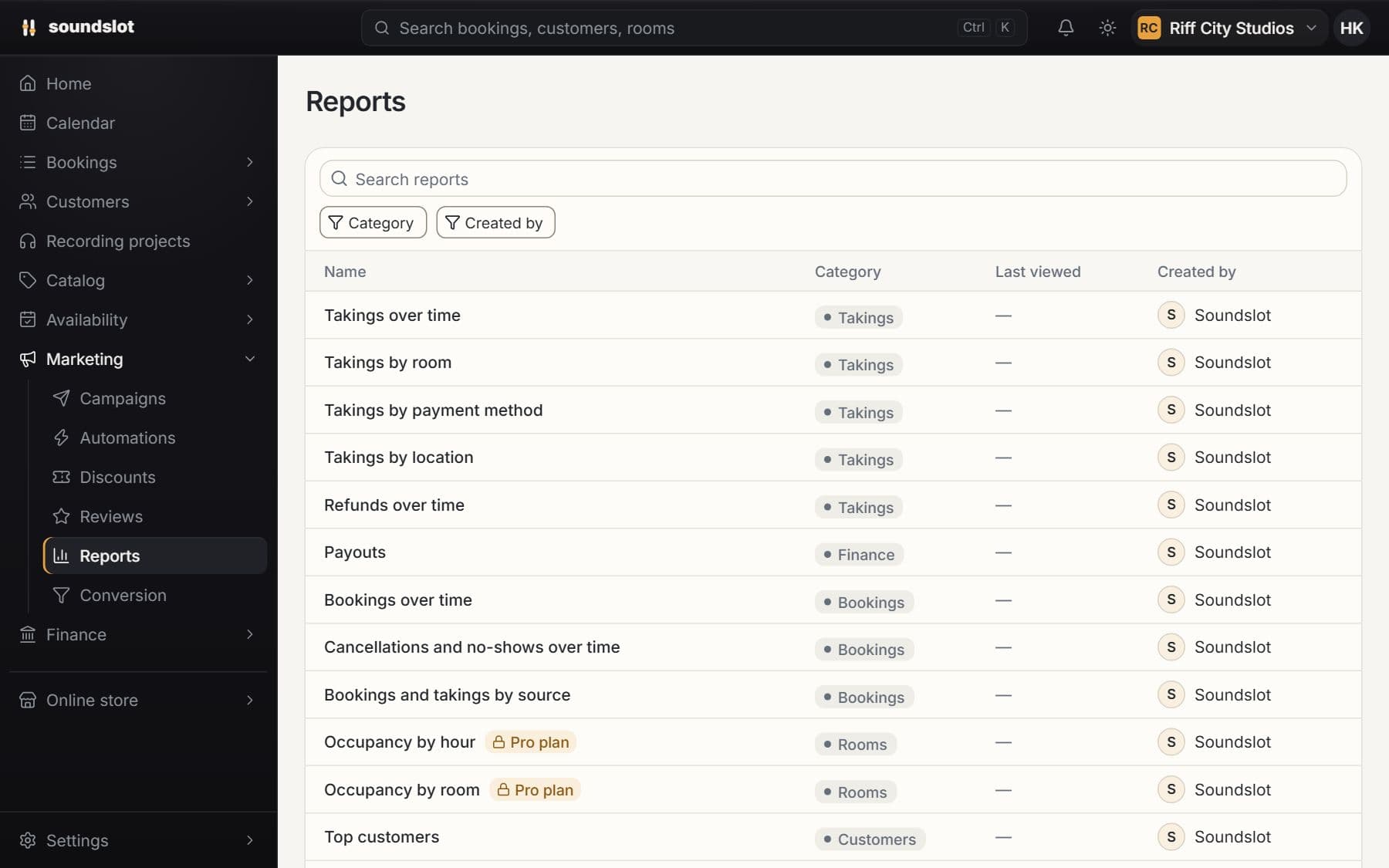
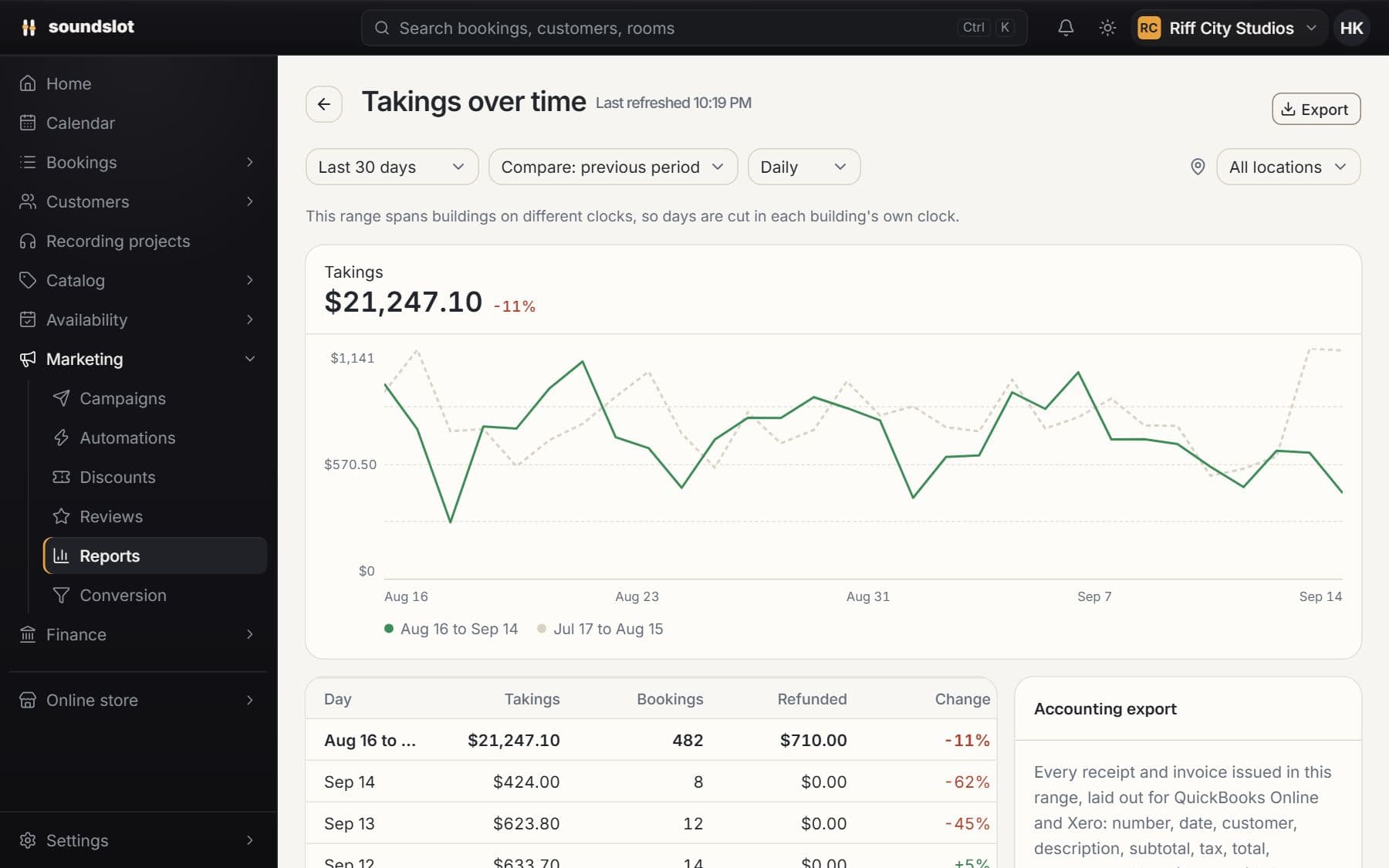
Compare date ranges and inspect booking revenue by room and location. Collected amounts and refunds are reported separately.
Review occupancy, cancellations, no-shows, discount use and additional sales to understand what produced the totals.
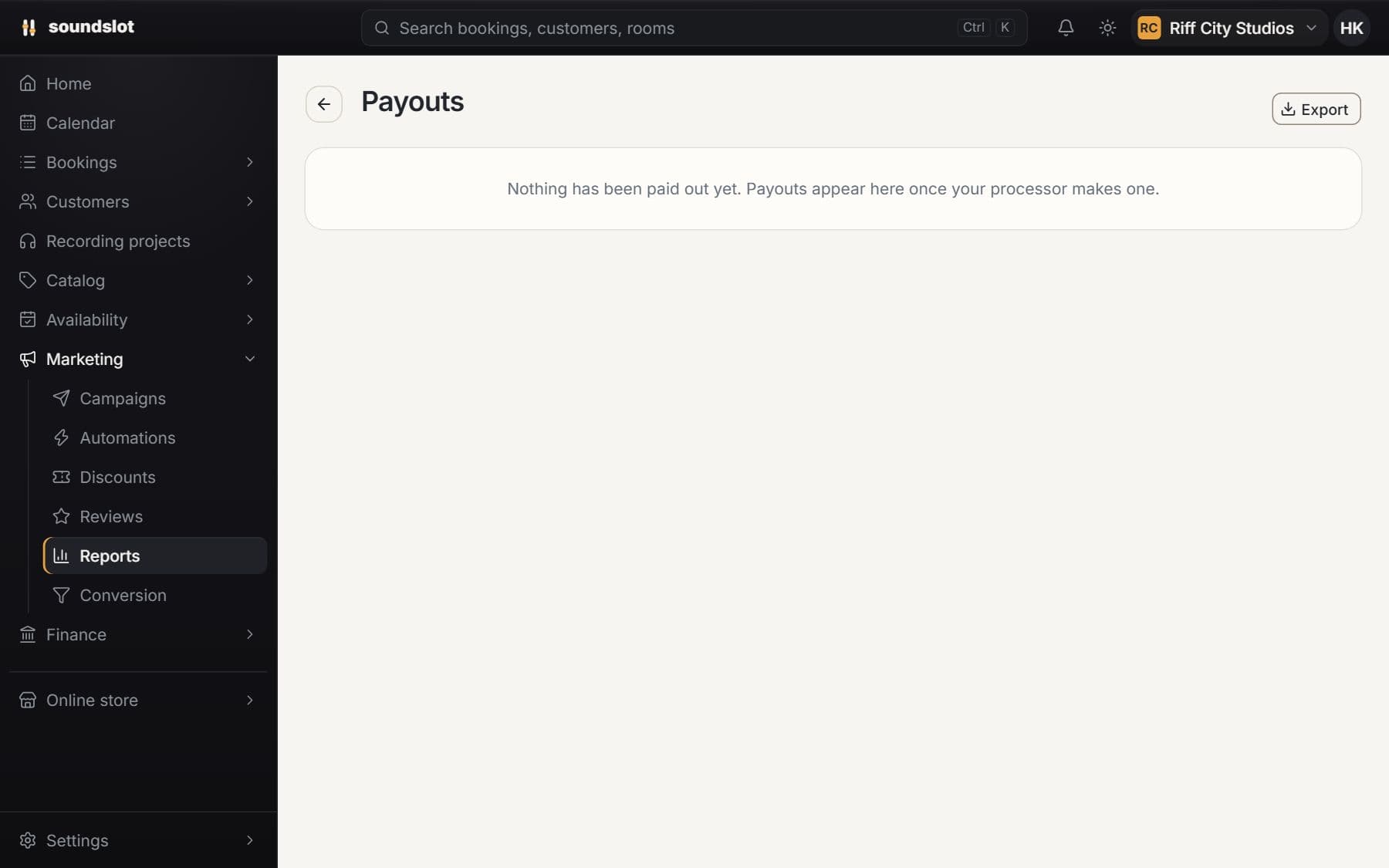
Inspect the payouts returned by your connected processor and the available charge details behind them.
Reporting access follows the plan and staff permissions. Payment timing can differ from the session date. QuickBooks and Xero direct synchronization is not available; accounting exports require a separate import or bookkeeping workflow.
Compare plansCollect a booking balance at the desk, record external payment methods and track cash activity without creating a separate booking record.
Find the session in the calendar or booking list and check its balance.
Use the connected processor flow or record the offline method and amount.
Confirm that the payment status, remaining balance and payment history reflect the transaction.
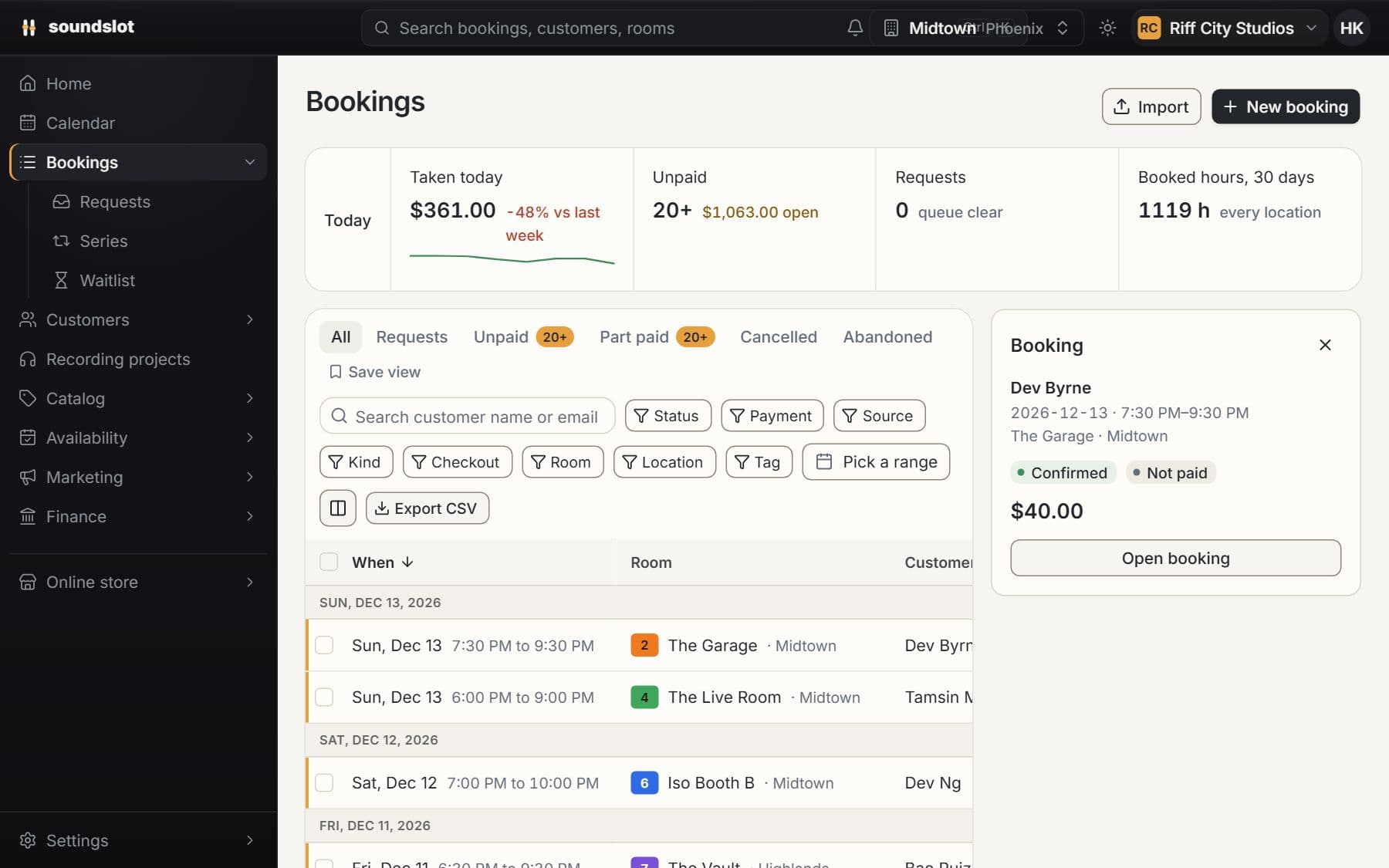
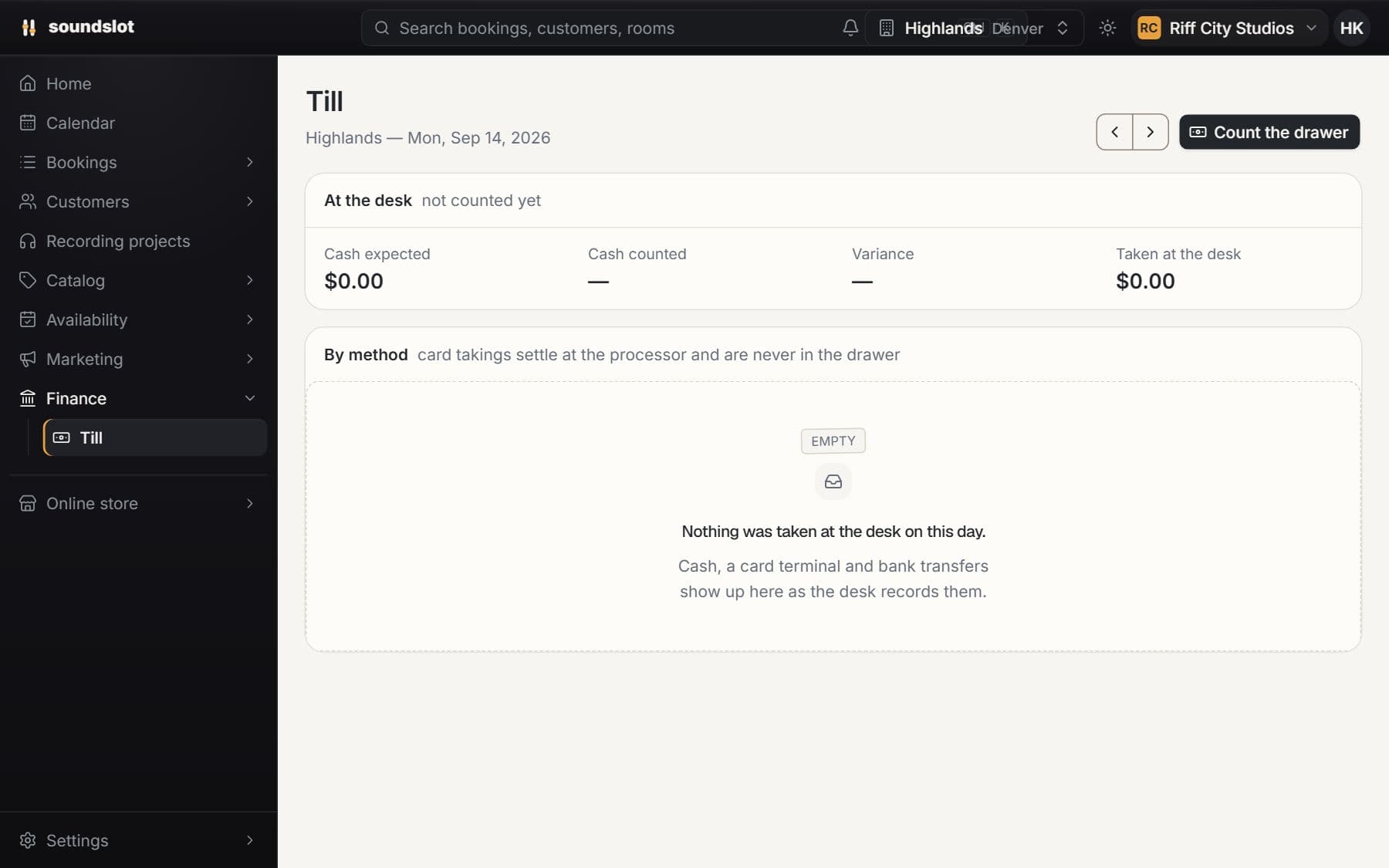
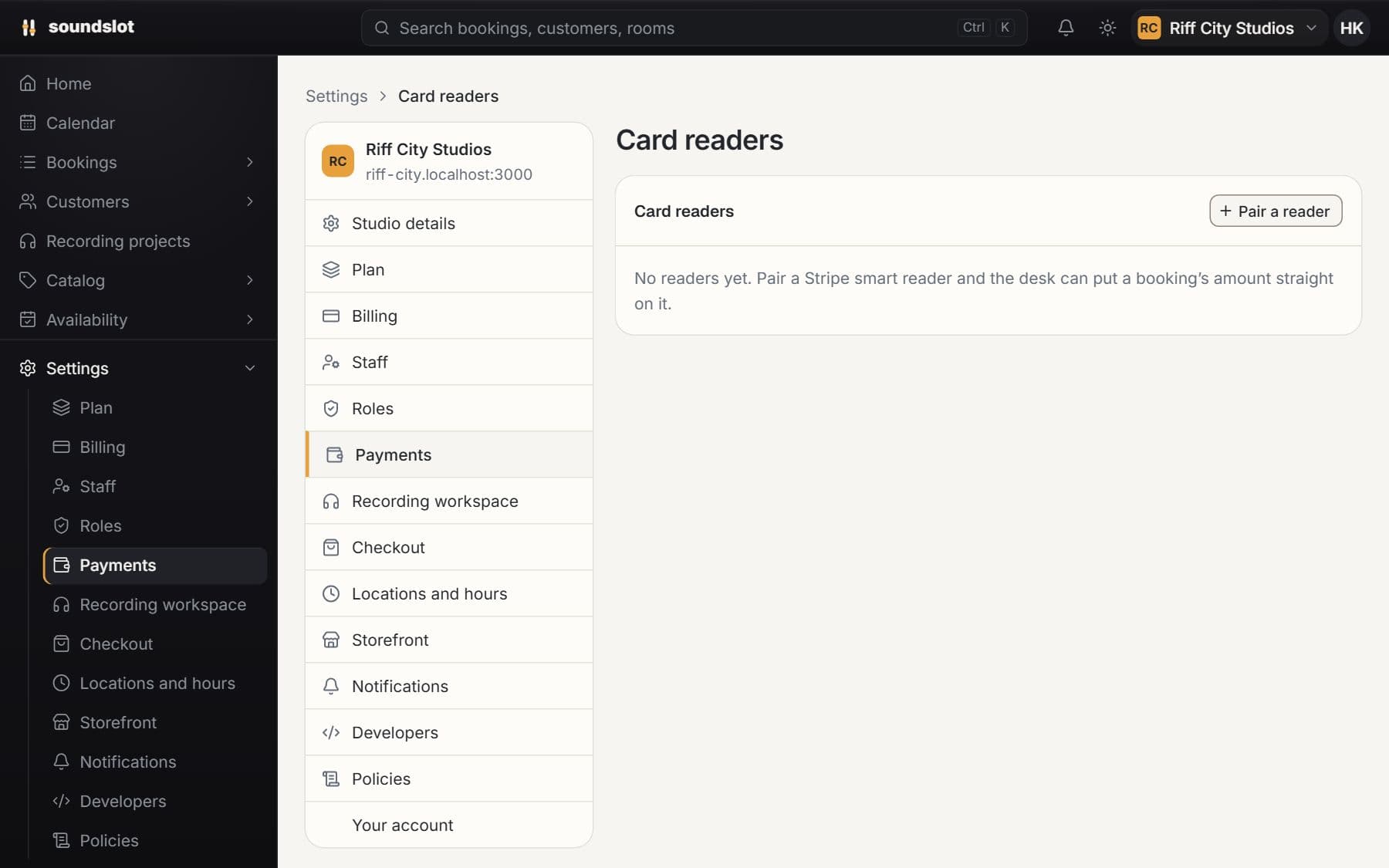
Open the booking to inspect what has been collected and the outstanding amount before taking another payment.
Record cash or another supported offline payment method so the payment remains attached to the session.
Use supported connected terminal flows where configured, and review the till's breakdown of offline payment methods.
Marking an external payment as received does not move money through Soundslot. Integrated terminal use requires supported hardware and provider configuration. Staff need payment permissions.
Compare plansKeep payment documents attached to bookings and customers. Download receipts and invoices as PDFs and export document records for bookkeeping.
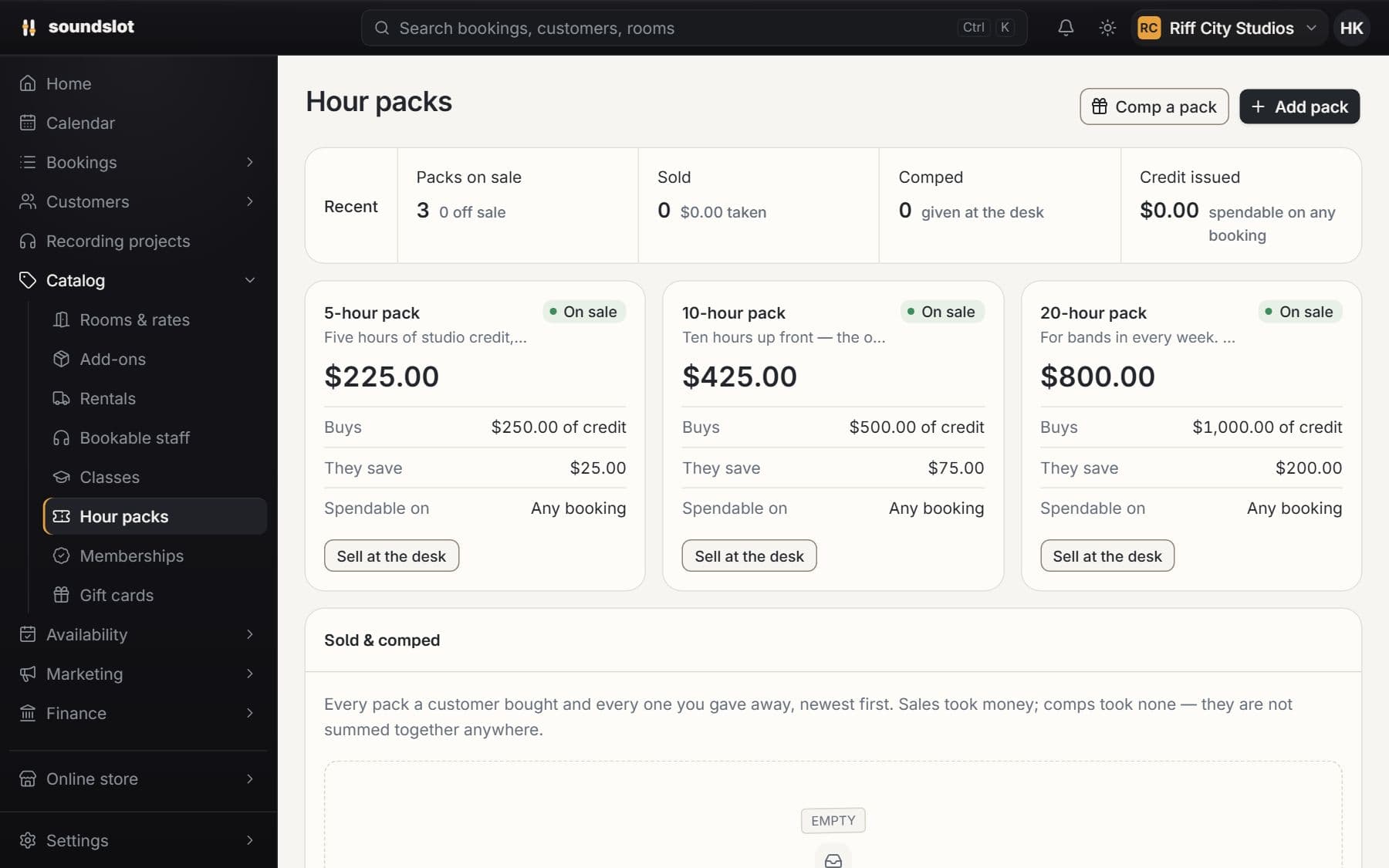
Sell prepaid studio time and gift credit through your storefront. Track issued value and redemptions against customer accounts and bookings.
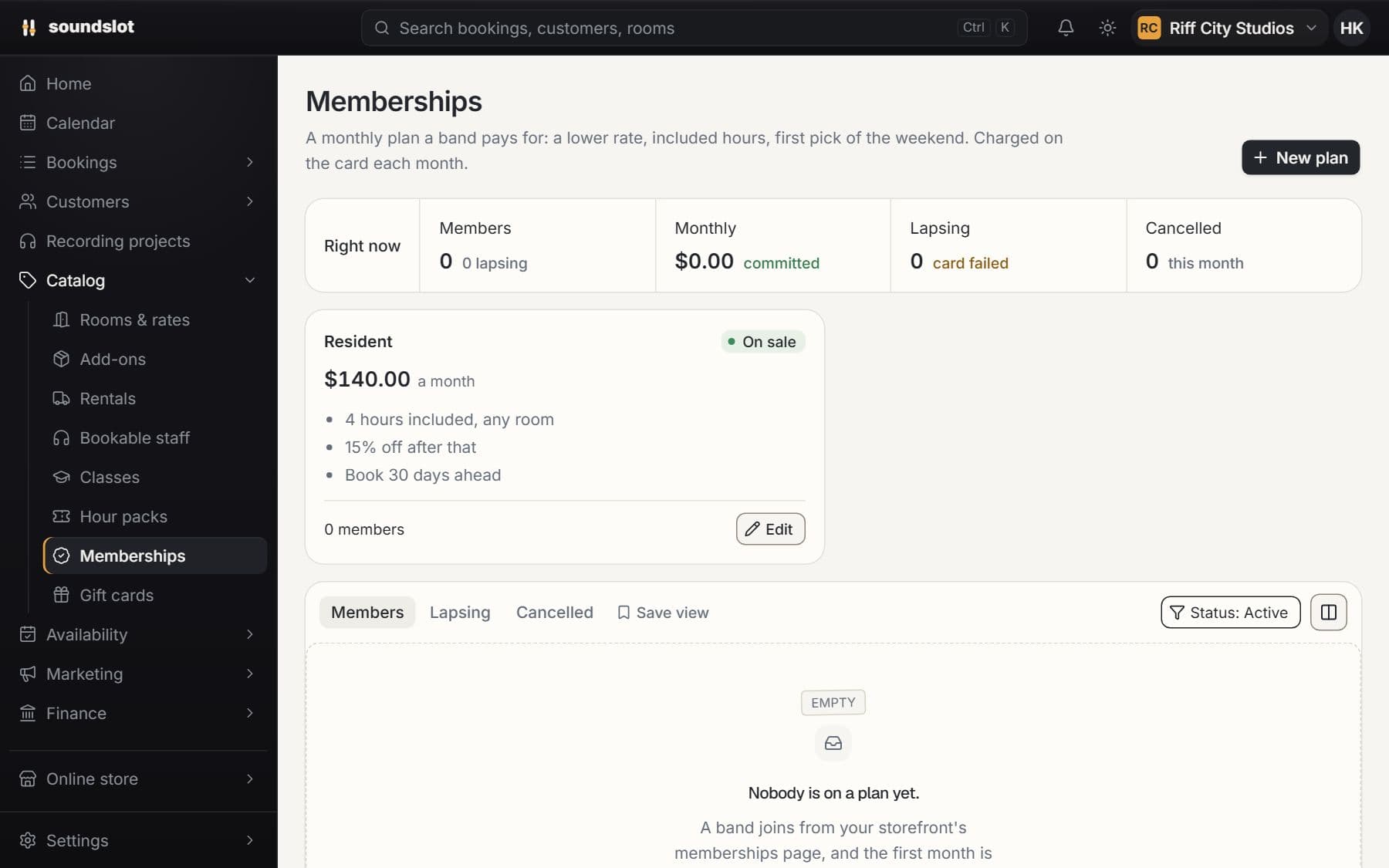
Sell a monthly customer plan with included time and a member discount. Bill the saved card on the membership's anniversary and track the period's usage.
Bring your rooms, rates and questions. We'll walk through the features you'd use.
From $39/mo · 14 days free · card required · nothing charged until day 15